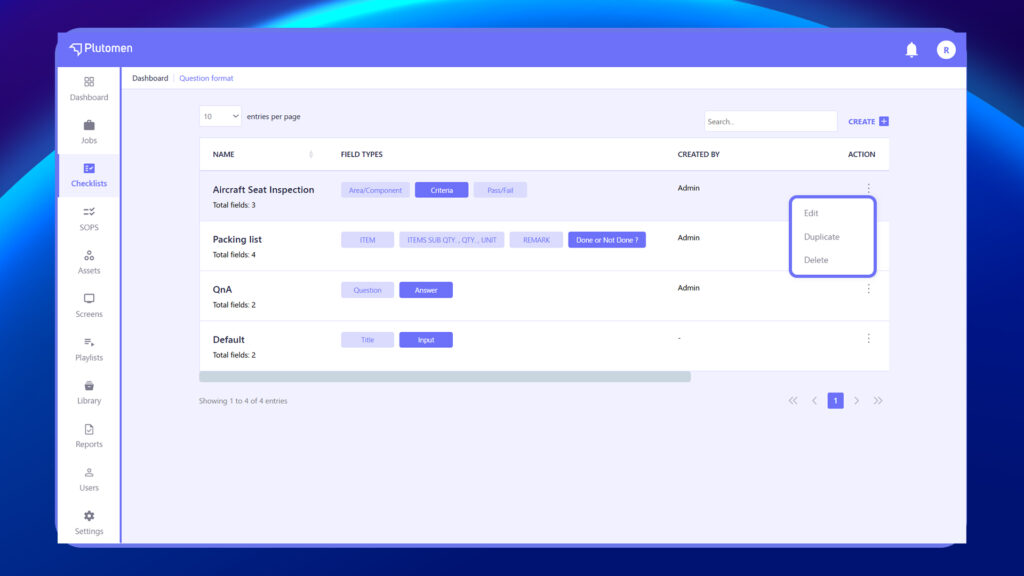
Let’s you create and reuse sets of predefined fields (like Title, Input, Remarks) for consistency across checklists. Each format shows total fields, creator details, and last updated date.
Steps to Create Question Format
- Log in to the web page.
- Navigate to ‘Question Formats’ in the left-hand menu within Checklist.
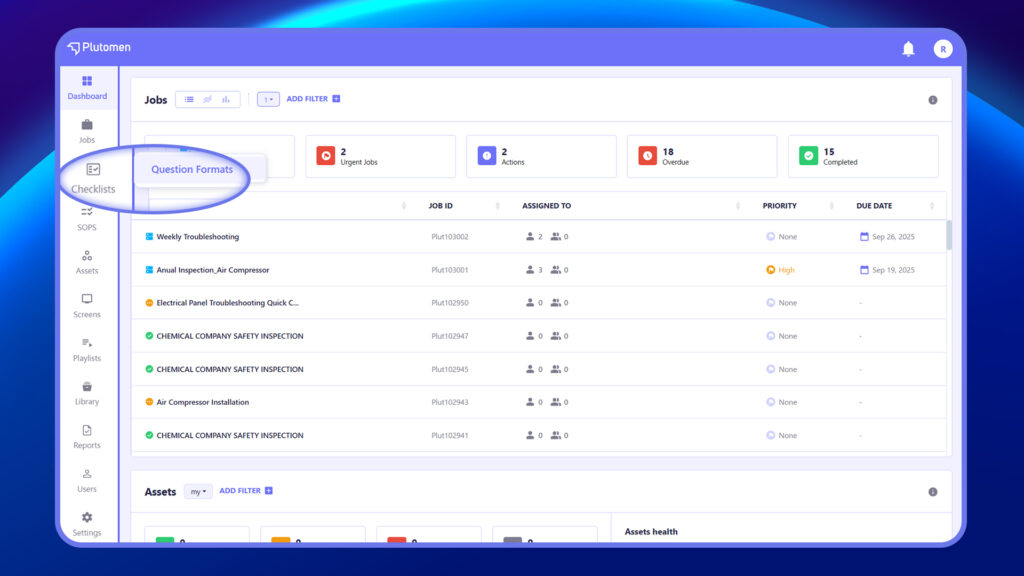
3. Click on ‘+ Create’ located at the top right.
4. Create a name for the question format.
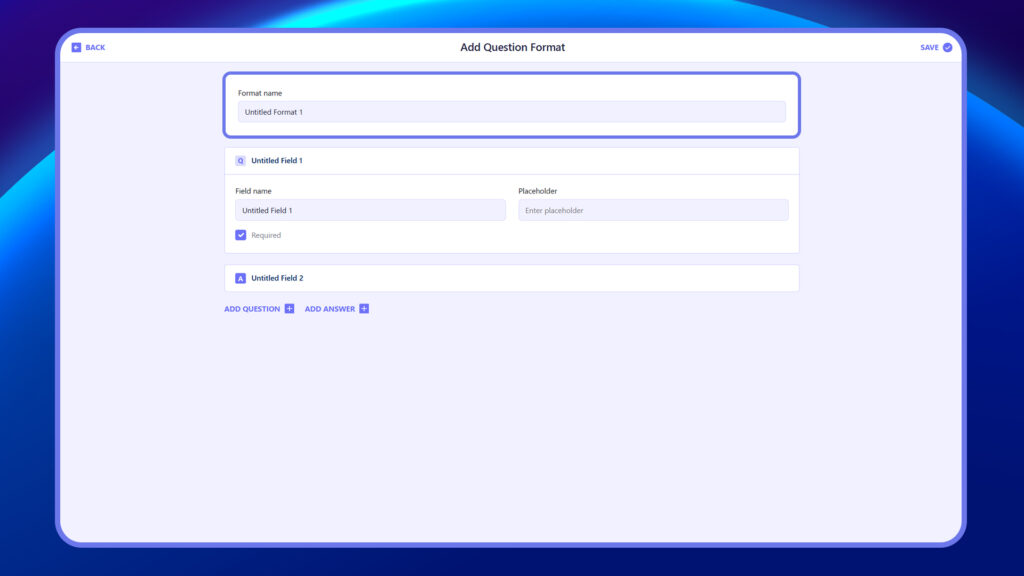
6. Enter Field Name (e.g., Untitled Field 1).
7. Toggle Required if needed.
8. Enter Placeholder (e.g., Enter placeholder).
9. Use ‘+ Add Question’ and ‘+ Add Answer’ to include a new question or new answer.
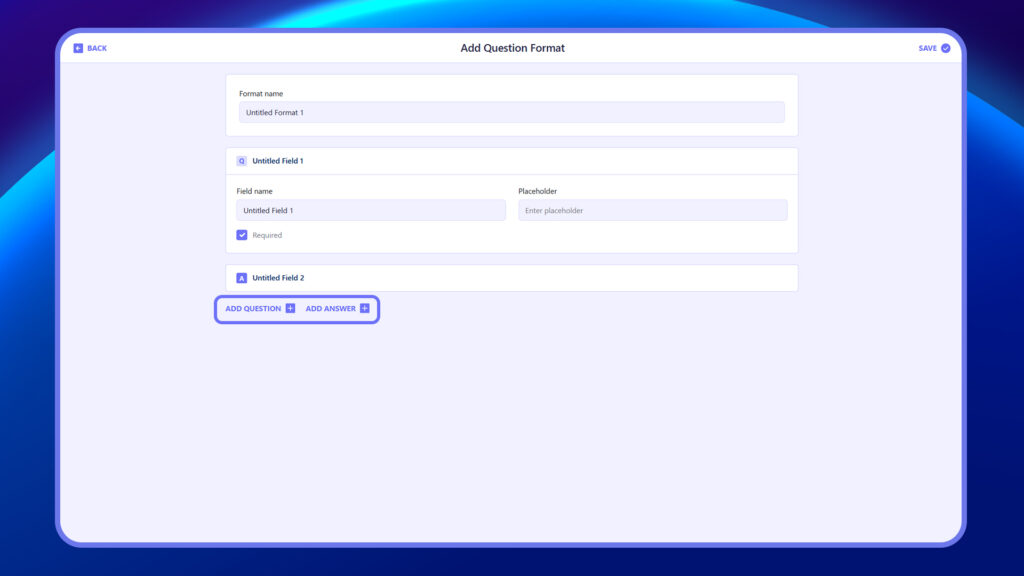
10. Click Save to finish.
Actions in Question format #
Manage your saved question formats using the following actions:
Edit Question Formats #
Modify existing fields, update names, or adjust structure as needed.
Steps to Edit Question Format
- Click Edit Question Format.
- Edit Format Name, Field Name, Desired Value, Required checkbox, Placeholder, or modify Question and Answer.
- Make your changes and click Save.
Duplicate Question Formats #
Create a copy of an existing format to reuse and customize without altering the original.
Steps to Duplicate Question Format
- Click the three-dot icon (⋮) next to the format.
- Select Duplicate Format.
- A copy is created — rename and customize as needed.
- Click Save to apply changes.
Delete Question Formats #
Remove a format permanently if it’s no longer needed. (This action cannot be undone.)
Steps to Delete Question Format
- Click the three-dot icon (⋮) next to the format.
- Select Delete Format.
- Confirm the deletion — the format will be permanently removed.