Overview #
The Assets module allows you to create, manage, and track all physical or digital assets within your organization. These can include machines, equipment, tools, or any resources used in operations.
By managing assets in the platform, you can monitor their usage, assign them to sites, and link them with jobs and checklists for better operational control.
How to Add Asset Type #
- Log in to the web platform.
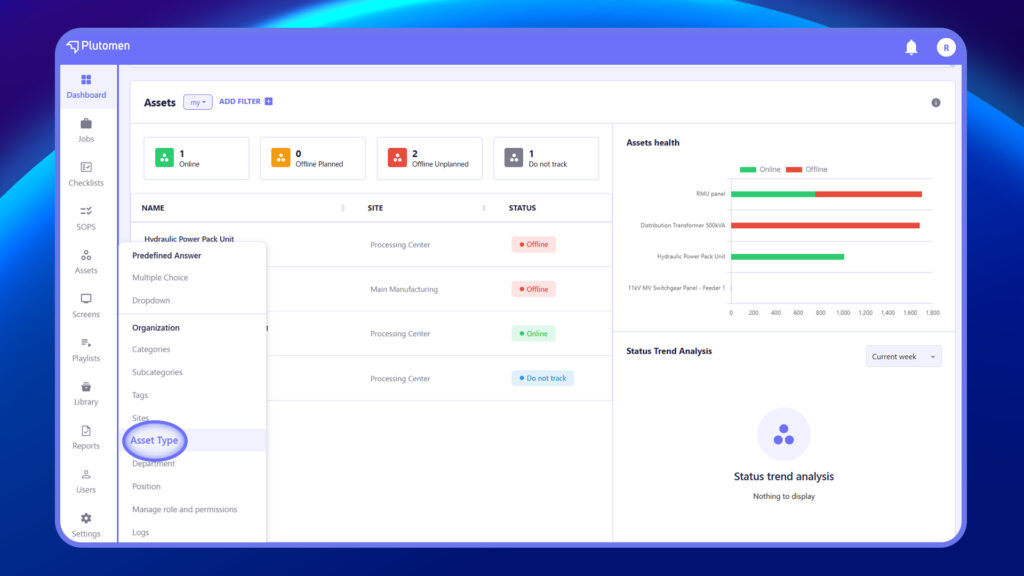
- From the left-hand menu, go to Assets > Asset Type.
3. On the Asset Type page, click Create (top-right).
4. In the pop-up form, enter the asset name.
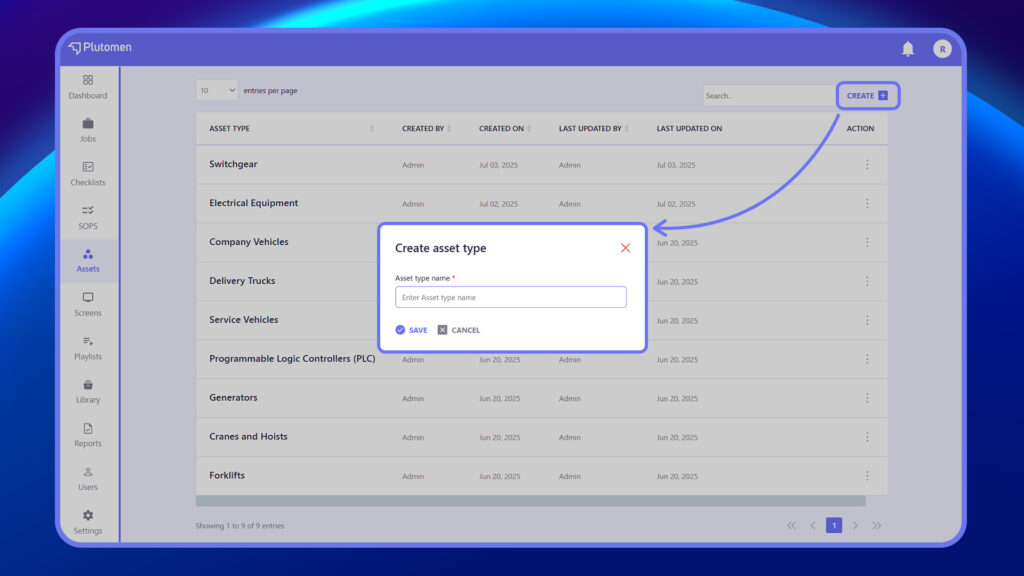
5. Click Save to add the new asset type.
6. The newly created asset type will now appear in the Asset Type list along with details like Created By, Created On, and Last Updated.
How to Create a New Asset #
Step 1: Open Assets Module #
Go to Assets.
Step 2: Create Asset #
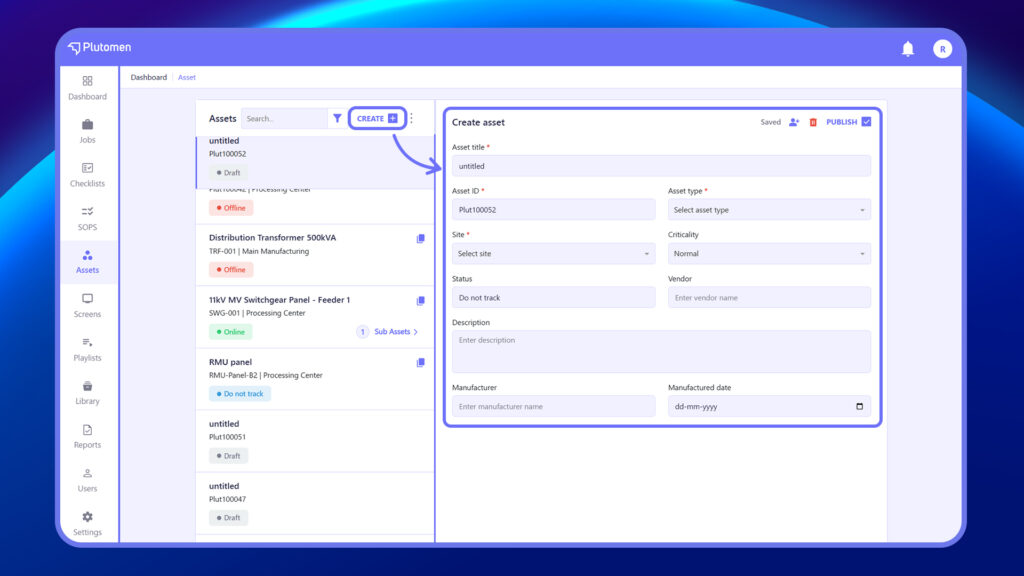
Click Create Asset.
Step 3: Enter Asset Details #
Provide the required information:
- Asset Title – A unique, recognizable name
- Asset ID – Auto-generated or manually entered ID
- Asset Type – Select from a predefined list (e.g., Machine, Tool)
- Site – Choose the site or facility the asset belongs to
Configure Additional Details - Criticality – Normal, Critical, or Low
- Status – Choose from Active, Do Not Track, Offline, etc.
- Vendor – Name of the supplier or manufacturer
- Description – Brief description of the asset
- Manufacturer – Equipment brand or maker
- Manufactured Date – Input the date using the date picker
Step 4: Publish Asset #
Click Publish.
👉 Adding complete asset details helps in better tracking and management.
How to Manage Assets #
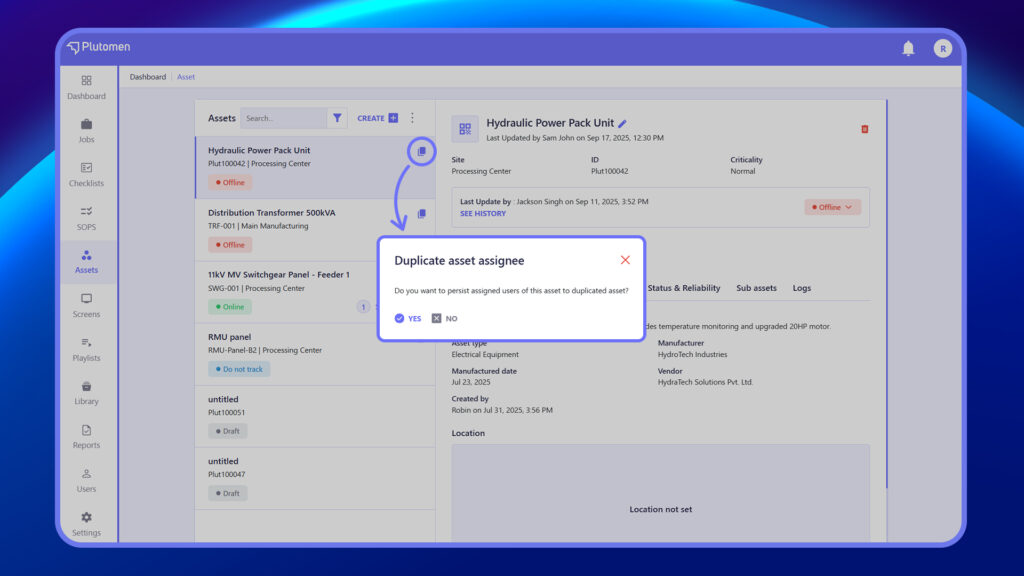
- Duplicate Assets
Creates a copy of an existing asset with the same details for faster setup of similar assets.
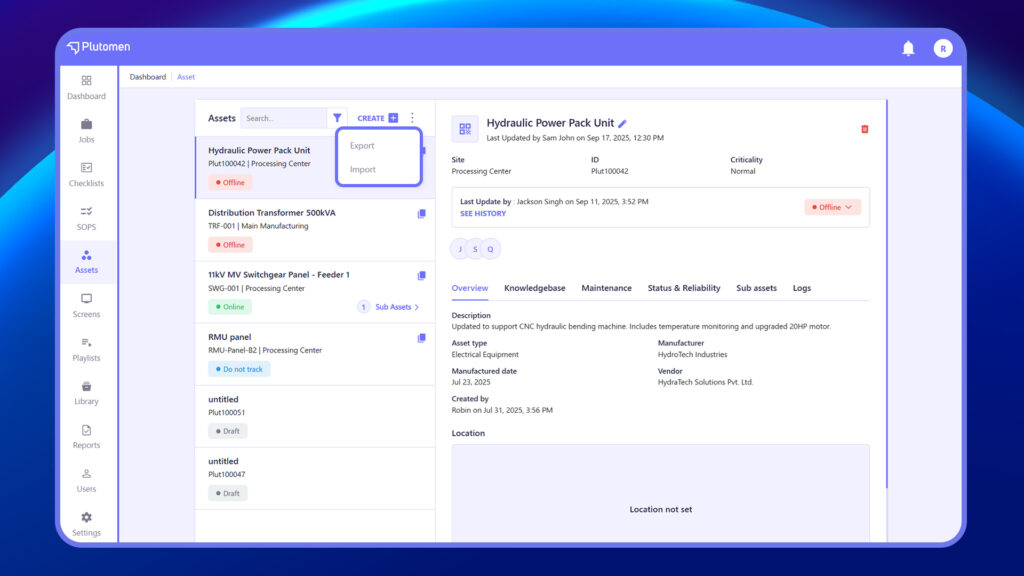
- Import Assets
Upload multiple assets at once using a supported file format (e.g., CSV or Excel).
- Export Assets
Download asset data for backup, reporting, or offline use.
- Delete Assets
Permanently removes selected assets. Use with caution, as this action cannot be undone.
- Edit Assets
Modify existing asset information like title, ID, type, vendor, or status.
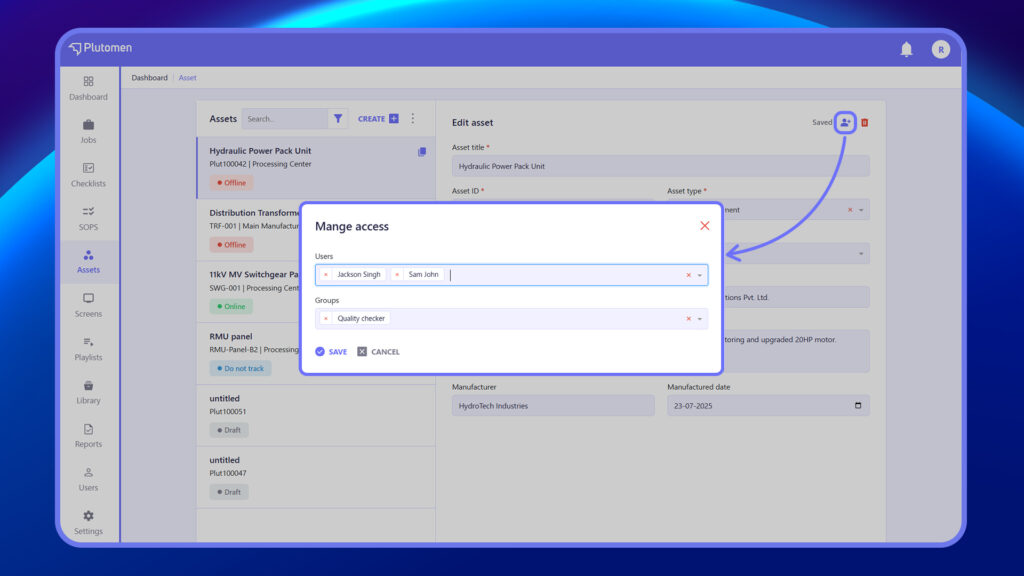
- Manage Access
Assign or update which users or groups can view, edit, or manage the asset.
- QR Code
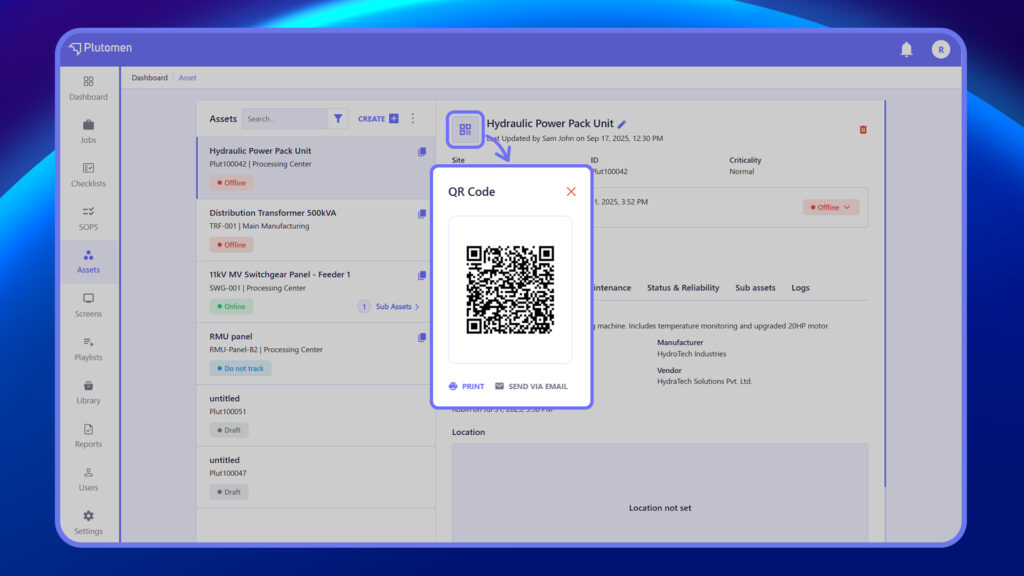
Each asset has a unique QR code that can be scanned to quickly view or access asset details on any device.