The Add Question feature lets you configure checklist questions by setting the answer type, adding guidance, attaching media, and applying logic.
Steps to Add Questions in Checklist #
- Log in to the web app
- Access ‘Checklist’ from the left-hand menu.
- Select the page where you want to add a question.
- Click + Add question within a section.
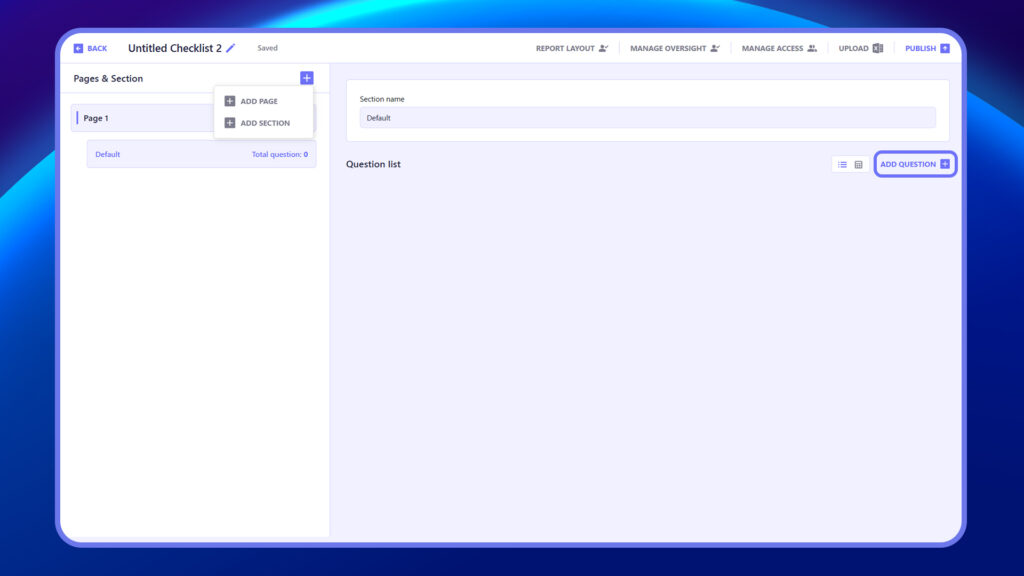
5. Start typing the question/s within the question Title
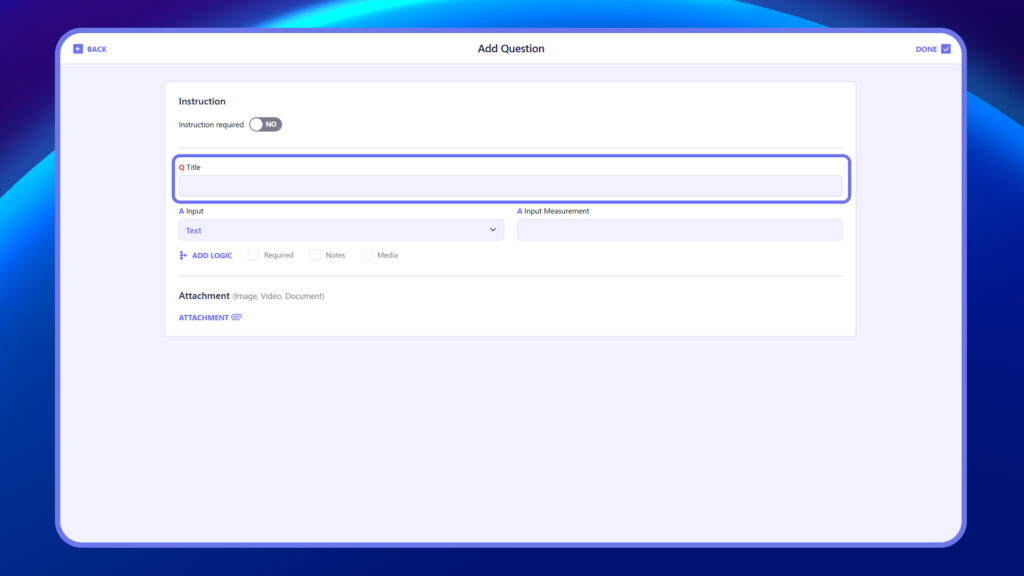
6. Select a suitable answer type for the question from the Answer tab.
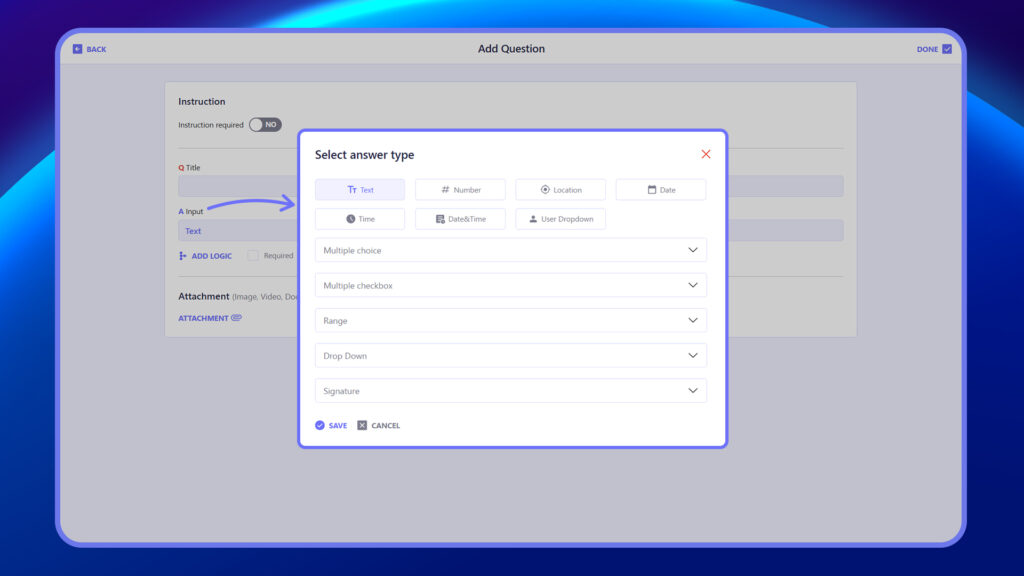
7. Key in the Answer measure, i.e., suffix if applicable. This will guide the team during inspection to know the denomination in which the value should be, eg, cms, mts, etc. This will automatically reflect in the report also.
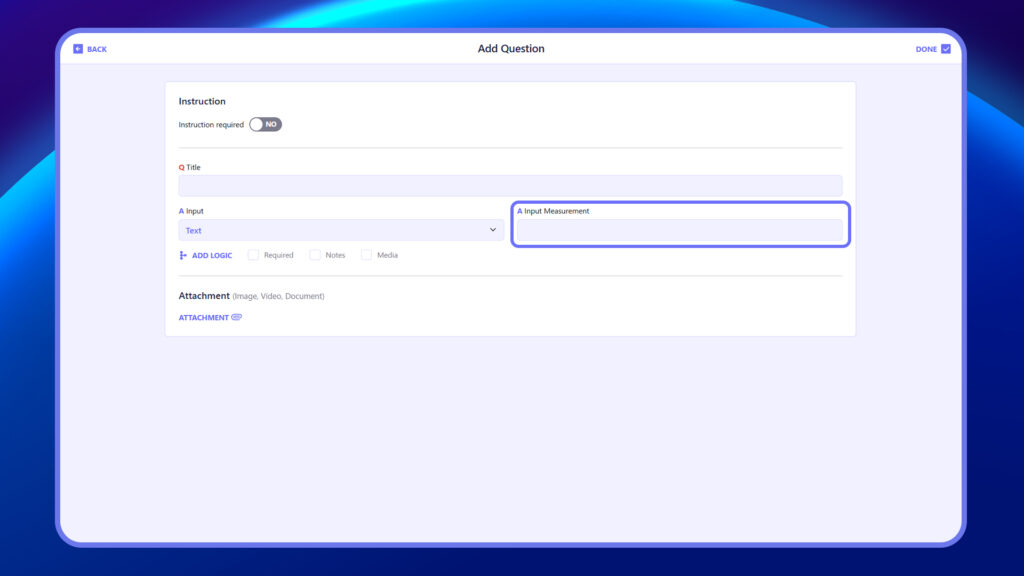
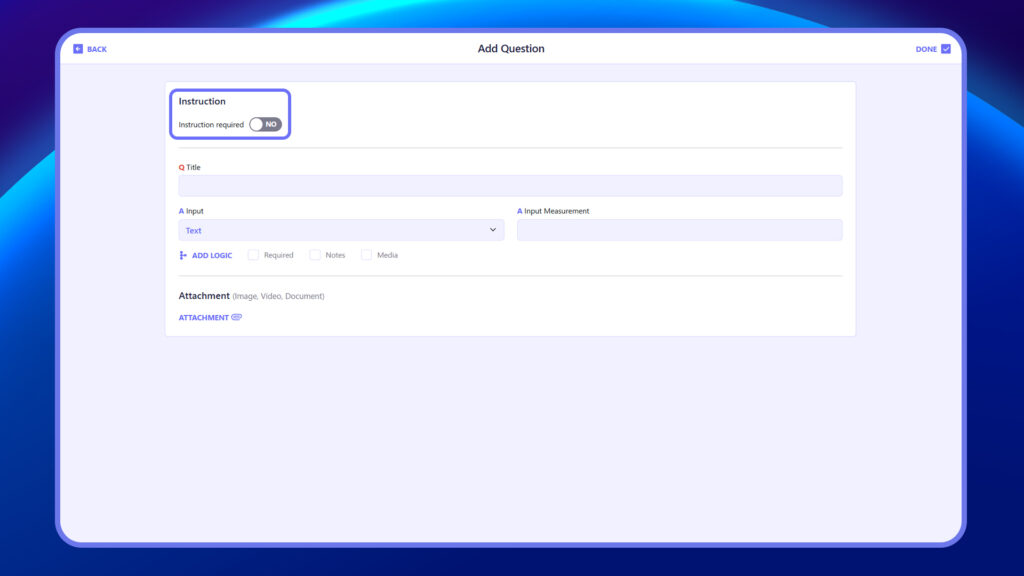
8. Add instructions or notes to a question using the instruction toggle feature. This will be displayed as additional information for the respective question during the inspection.
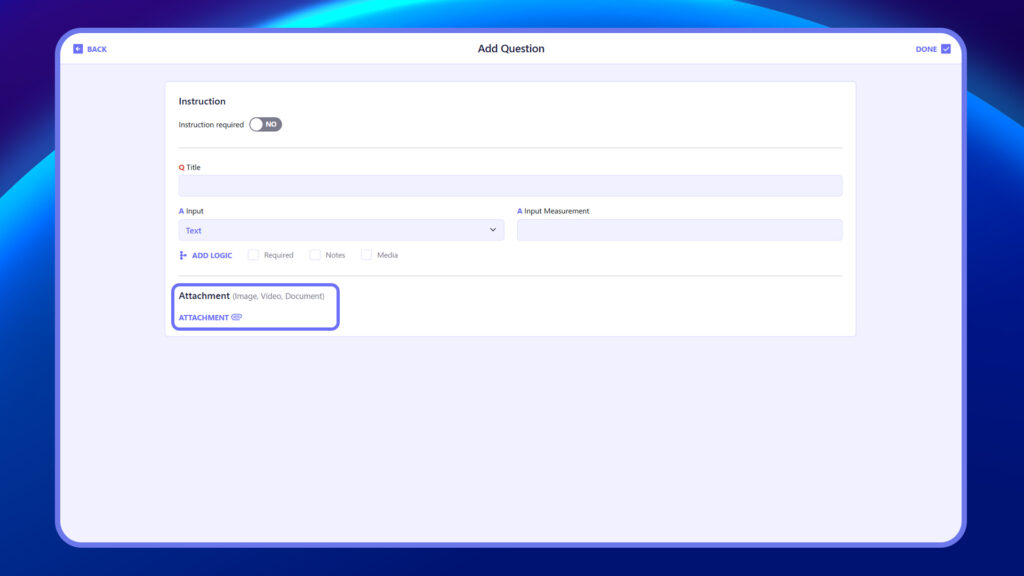
9. Add media, instructions, and documents to the question using the Attachment option next to the question field. This will display as additional information at the time of conducting the inspection.
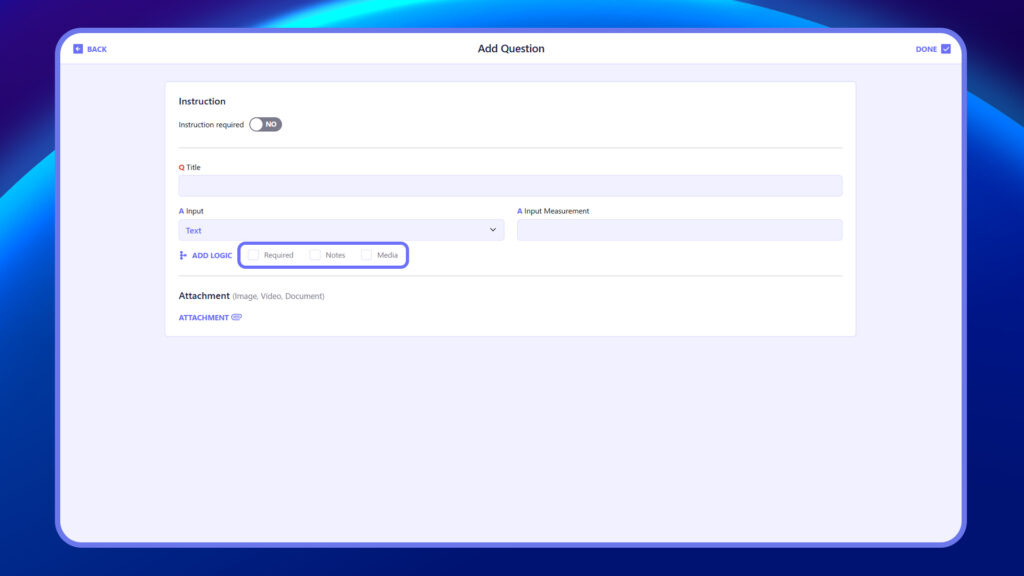
10. At the bottom left of every question, there are checkboxes:
Required – Selecting this makes the question mandatory.
Notes – Selecting this makes adding notes at the time of inspection mandatory for the respective question.
Media – Selecting this makes adding media (Image / Video) mandatory at the time of inspection for the respective question.
11. Add Logic: Add logic allows you to incorporate conditional logic to make notes or media mandatory based on the value entered or captured while filling out the checklist. This is especially useful in situations where media or notes are not always required for a question, but become necessary based on the value observed at the time of inspection.
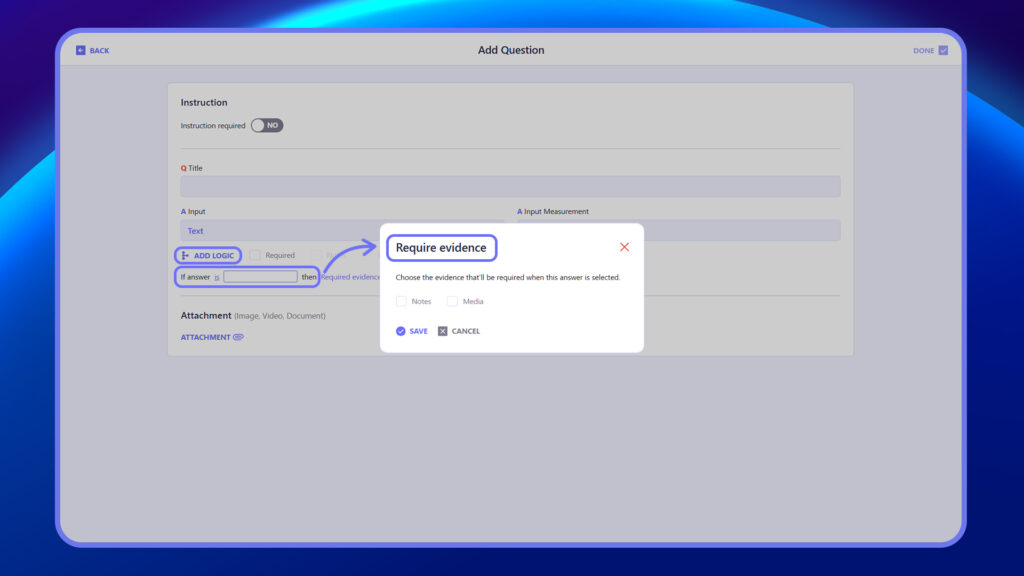
Add logic is available for the following question types:
Text: Logic of mandatory notes/media or both can be applied if the text entered is equal to or not equal to a specific value.
Multiple Choice: Logic of mandatory notes / media or both can be triggered if a particular choice is selected or not selected.
Number: Logic of mandatory notes/media or both can be based on whether the number is equal to, greater than, or less than a specific value
Range: Logic of mandatory notes / media or both can determine if a value falls within a specified range or is beyond it.
Dropdown: Logic of mandatory notes / media or both can be applied if the selected value is equal to a particular list value or if a specific value is not selected.
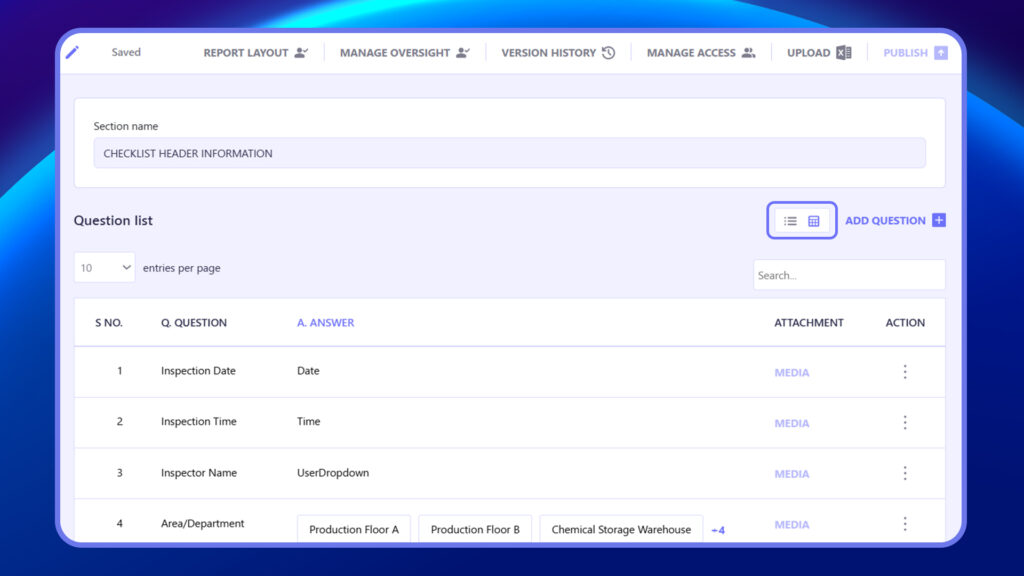
12. After adding all the questions, you can review them from a list or grid view within the page to ensure accuracy and completeness
Note #
- To select the most appropriate questions to add, look at the Checklist Answer Types available.
- “Media” and “Notes” can be added to any question at the time of inspection by a user. If marked required, it becomes mandatory for the user to key in detail to complete the inspection.
- In case Logic is added to any response type. Media or Notes will become mandatory based on input/ answer at the time of inspection.
- Instructions added to a question will be visible at the time of inspection to the user.
- You can bulk add questions and response types via Excel.


