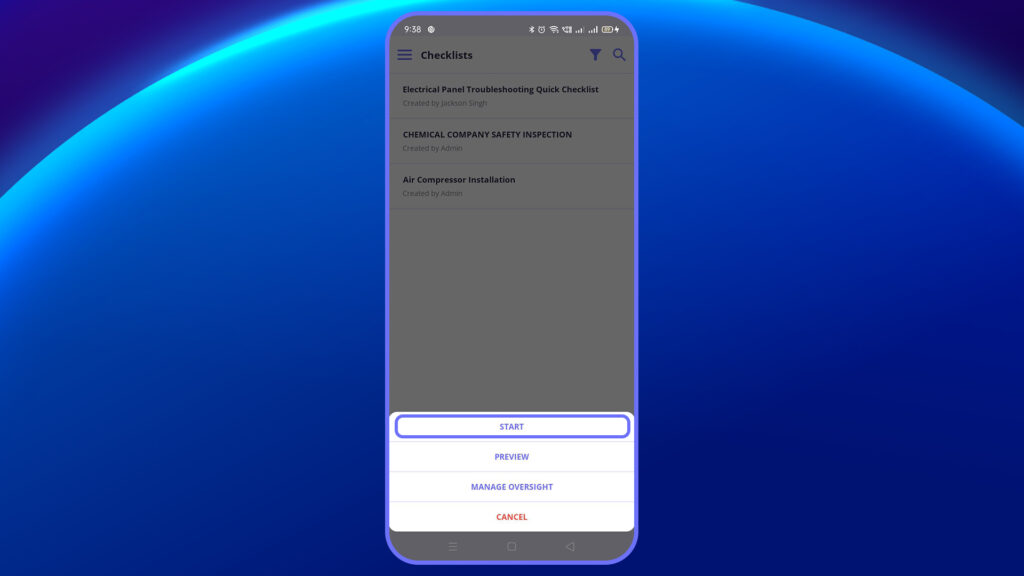
- Open the mobile app.
- Access the respective checklist from the menu bar or open the corresponding in-progress checklist.
- Start or edit the checklist.
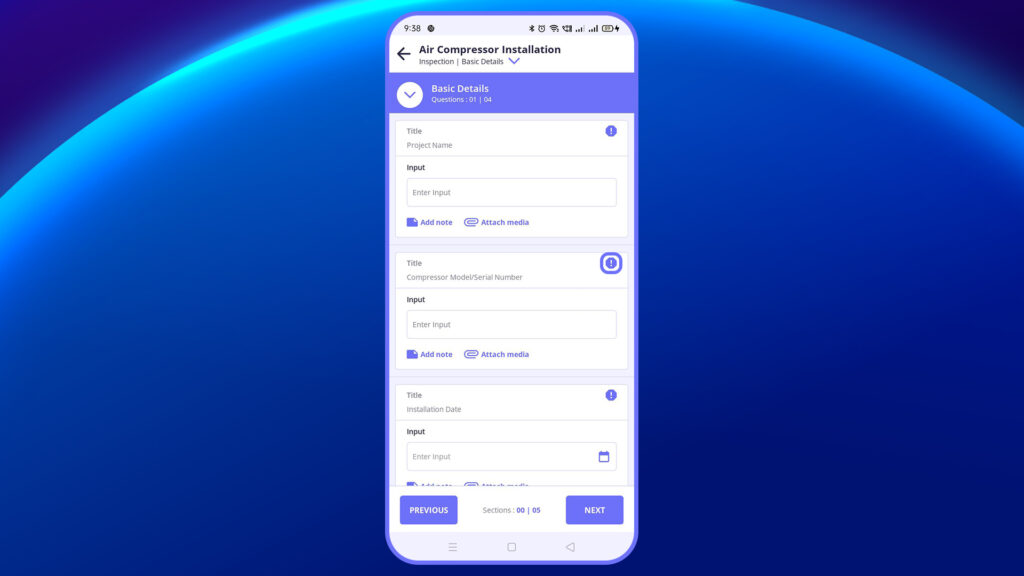
4. Tap “Action” at the bottom of the question.
5. A modal window will open to capture the Job Title, Action Description, Due Date, assign it to a user, and attach an image for context.
6. Click “Save” when done.
7. This “Action” created will by default create a separate job with status as “To Do” and priority “urgent” as default
8. The “Action” created will also reflect within the job ID within the action section, with a count of total actions created in the respective job


