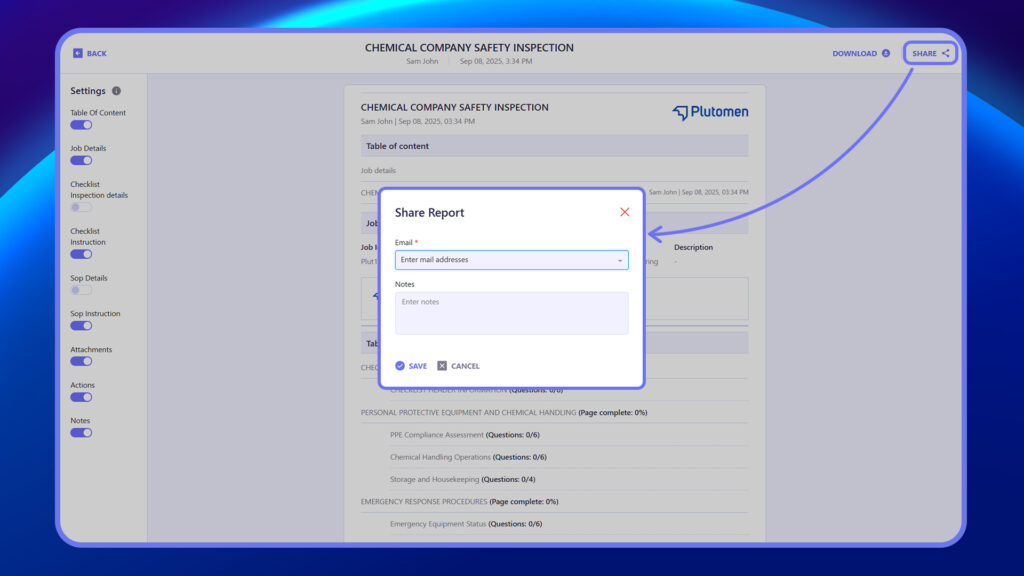
Overview #
The Reports section displays submitted job reports with details like Job ID, Report Name, Completed By, Completion Time, Site, Category, Asset, and Urgency.
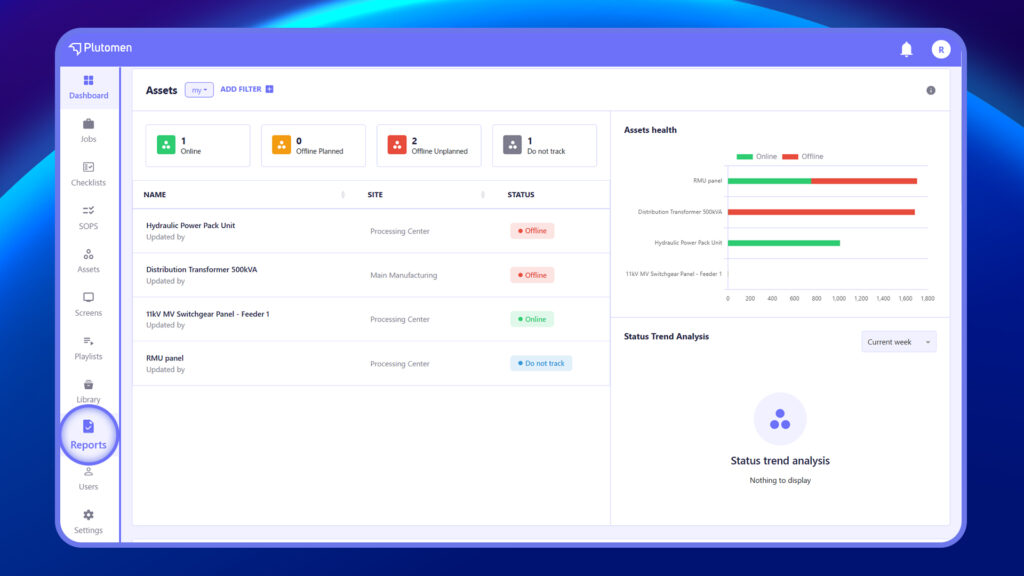
How to View Available Reports and Access Different Data Sources #
Step 1: Open Reports Module #
Go to Reports.
Step 2: View Report Types #
Browse available reports such as:
- Jobs Reports
- Checklist Reports
- Asset Reports
Step 3: Select Report #
Click on the required report.
👉 Each report provides data specific to that module.
How to Filter Reports Based on Category, Sites, or Other Parameters #
Step 1: Open Report #
Go to Reports and select a report.
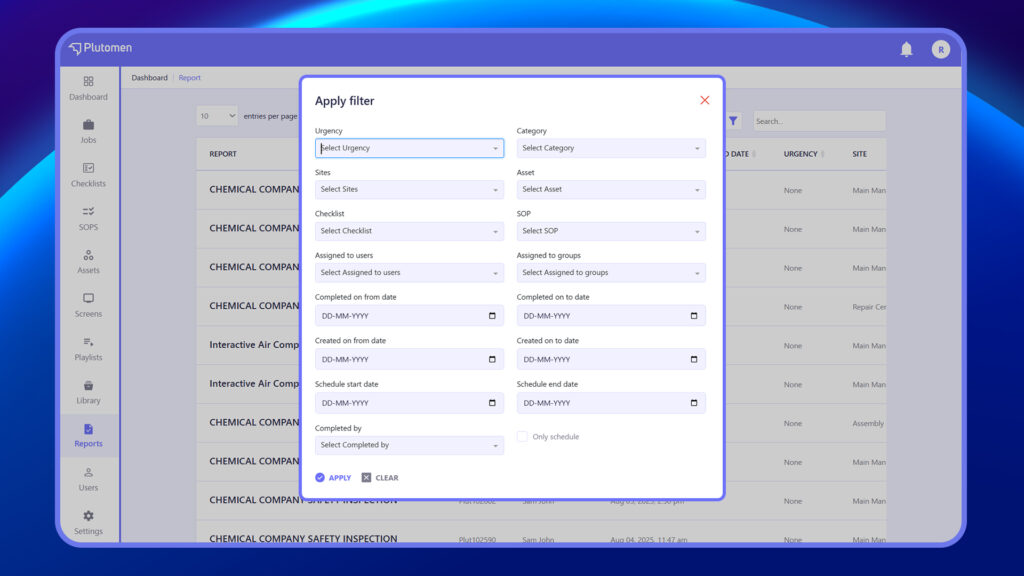
Step 2: Open Filters #
Click on the Filter option.
Step 3: Apply Filters #
Select filters such as:
- Asset
- Site
- Category
- User
Step 4: Apply Filter #
Click Apply.
👉 Filtering helps narrow down data for better analysis.
How to Customize Reports for Better Data Visualization #
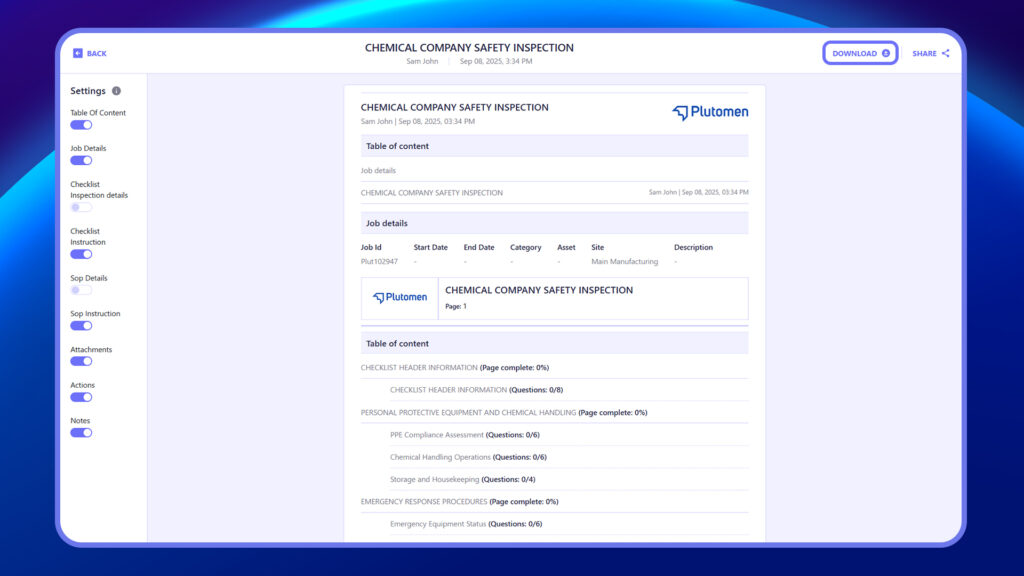
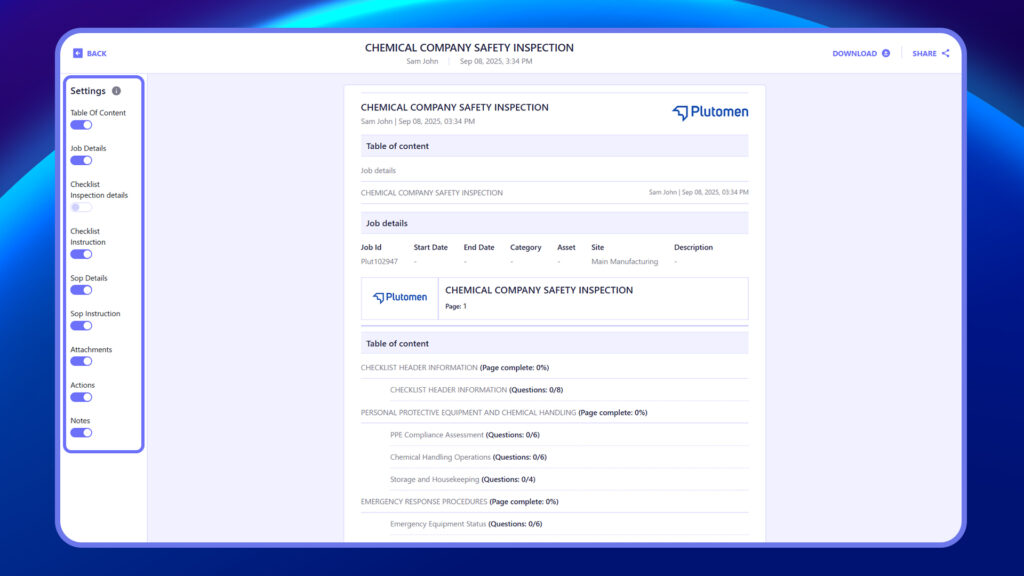
Tailor the display of information in your inspection reports by choosing what to show or hide, ensuring the most relevant details for your needs.
The Toggle option in the settings allows you to show or hide the following elements from report view and download. Some of this information might be generated at the time of creating the checklist, while some may be obtained during the inspection.
How to Export/ Download Report as Excel or PDF #
- Select “Reports” from the menu on the left-hand side.
- Choose the completed inspection report you want to download.
Note: Completed inspection reports can be filtered based on the Type “Completed.”
3. Click on “Download” at the top right next to “Share.”
4. Clicking on this will open an option to select the format of the report (PDF or Excel).
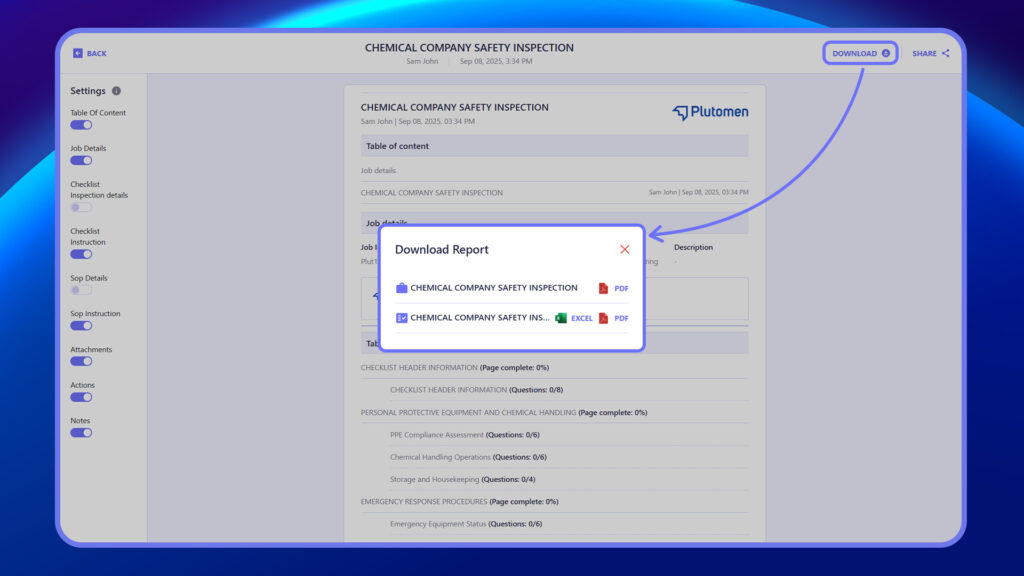
5. Once selected, the report will be downloaded.
How to Share/Email Report #
- Log in to the web platform.
- Go to ‘Reports‘ from either the left-hand menu or the dashboard.
- Select the completed inspection report you wish to share.
Note: Completed inspection reports can be filtered based on the type “Completed.“
4. Click on ‘Share’ at the top right.
5. Enter the email ID of the person you want to share the report with and click ‘Save’ once done.