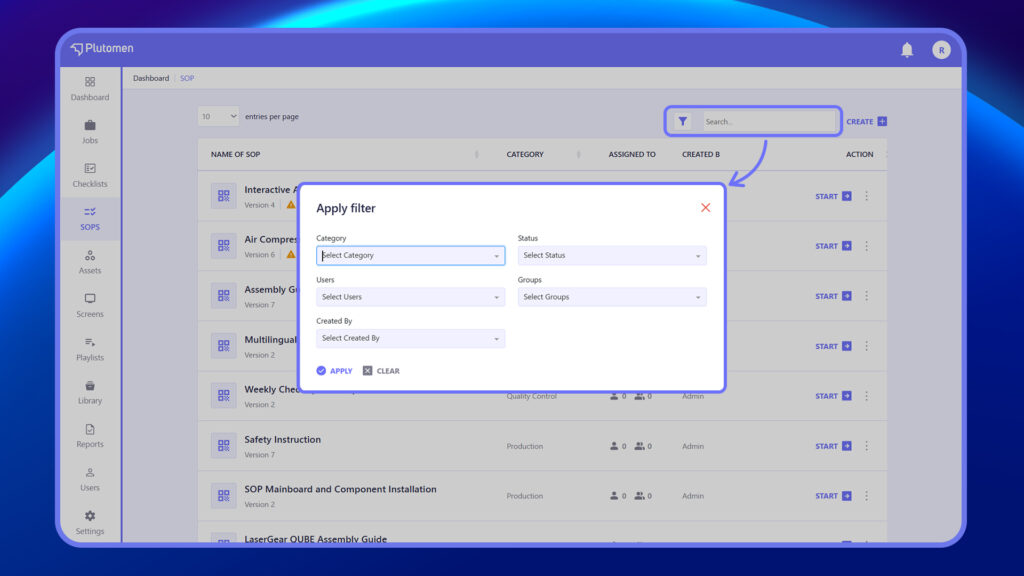
The Apply Filter panel allows you to narrow down SOPs based on specific criteria. You can filter by Category to view SOPs under a particular classification, or by Status (e.g., Published or Unpublished) to check their current state. Use the Users and Groups filters to find SOPs assigned to specific team members or roles. The Created By filter helps you locate SOPs created by a particular user. Applying these filters makes it easier to manage and find SOPs quickly, especially in large libraries.
Steps to filter SOP
- Click “Apply Filter” or open the filter panel in the SOP list view.
- Select one or more filter criteria:
- Category – Choose a specific SOP category.
- Status – Filter by status (e.g., Draft, Published).
- Users – Show SOPs assigned to selected users.
- Groups – Show SOPs assigned to selected groups.
- Created By – Filter SOPs by their creator.
- The list updates automatically or click “Apply” to view results.