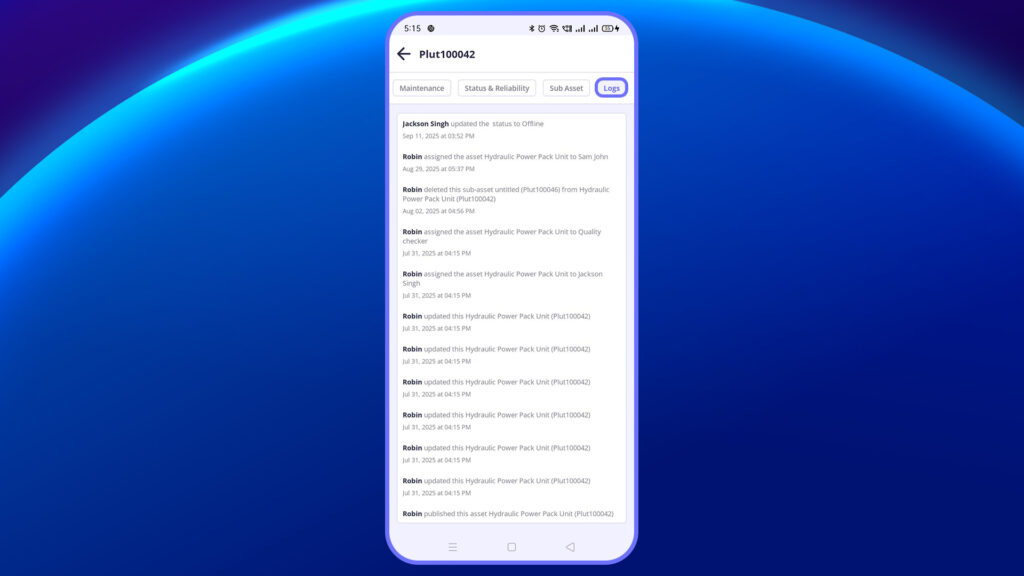
This section shows you the list of assets that have tasks or checklists assigned to you.
Viewing All Assigned Assets #
All the assets assigned to you appear in a structured list. Each entry may include the asset name, type, associated site, and current task status. Once a user clicks on any asset from the main list, they are redirected to the detailed asset screen, which has multiple tabs:
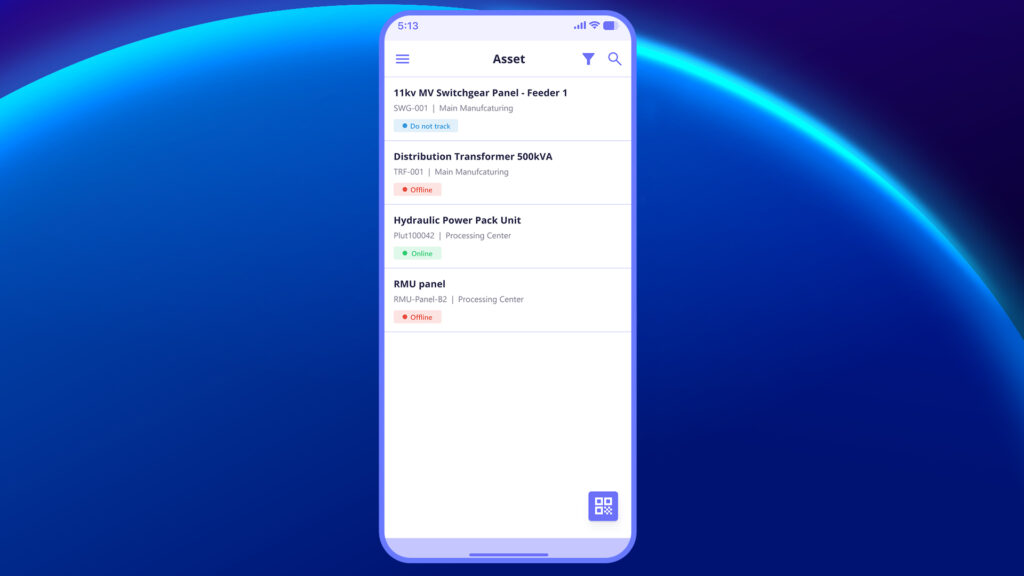
Overview Tab: #
This is the primary tab visible when you open any asset.
Key Fields:
- Asset Name & Code – Clearly identifies the asset.
- Site – Shows the location/site where the asset is installed.
- Criticality – Indicates how crucial this asset is to operations.
- Status Dropdown – Lets users update the asset status directly.
- Asset Description – Includes make, model, voltage rating, breaker type, etc.
- Type, Manufacturer, Vendor Info – Gives procurement & technical context.
- Created By and Date – Tracks who added the asset and when.
- Location – Shows current GPS/physical location (with option to set it).
This tab gives users a quick understanding of the asset’s identity and physical data.
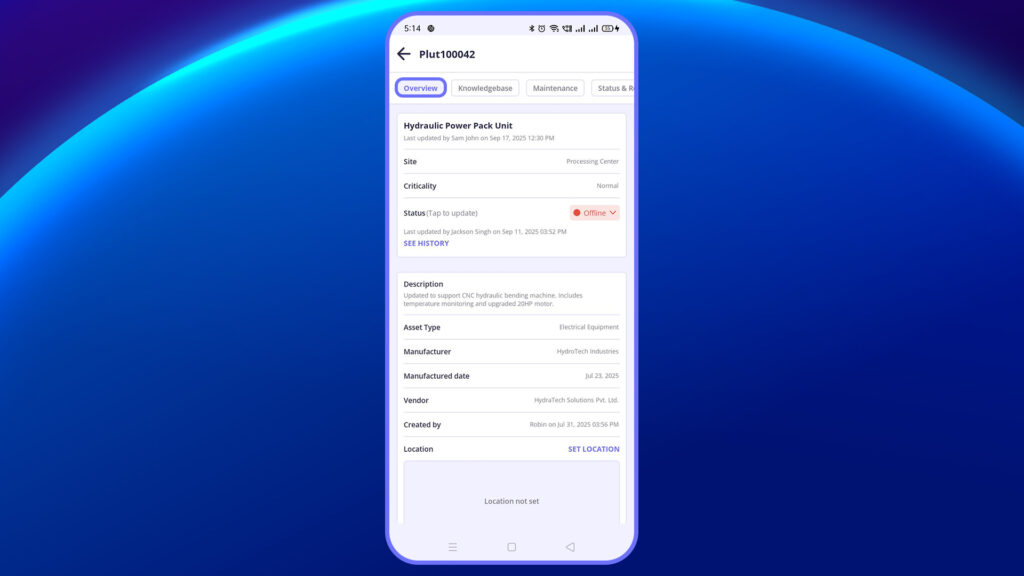
Knowledgebase #
Contains all resources related to the selected assets.
Features:
Filters – Filter by tags, category, users, groups and more.
This is crucial for field users to access instructions or documentation instantly.
Maintenance #
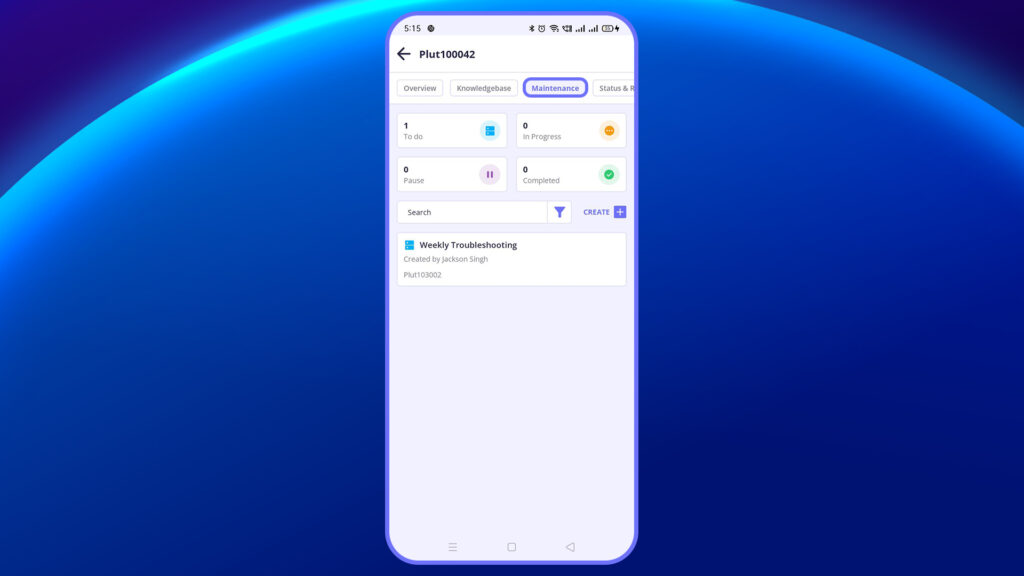
Displays all maintenance-related activities and jobs associated with the asset.
Status:
- To Do
- In Progress
- Pause (On Hold)
- Completed
Create Job
Users (especially Admins or assigned roles) can create a job using the + Create button.
Steps to Create a Job:
- Click on + Create.
- Under the Details tab, fill in:
- Job Name: Title or identifier of the job.
- Job ID: Auto-generated or manually set unique ID.
- Site: Select the location where the job needs to be executed.
- Asset: Choose the specific asset or equipment the job is related to.
- Category: Define the job category (e.g., Electrical, Safety, Maintenance).
- Priority: Choose the urgency (Low, Medium, High, Urgent).
- Description: Add detailed notes about the job.
- Start Date / End Date: Define the schedule or timeframe.
- How Often: Choose the frequency (One-Time, Daily, Weekly, Monthly).
- Attach media as required.
Add Sections and Activities #
You can divide a job into multiple sections, and each section can contain multiple activities like checklists, SOPs, or library files.
Add Section:
- Tap Add (+) > Select Section
- Fill in:
- Section Name: Logical grouping or header for activities.
- Description: Add context for what this section covers.
Add Activity:
- Tap Add (+) > Select Activity
- Choose Activity Type:
- Checklist: For yes/no or itemized inspections.
- SOP: For standard procedure-based activities.
- Library: For document or file-based activities.
- Select the relevant activity from the pre-created list.
Publish the job
Once all the required fields are filled, click Publish to make it live. The job will appear under the respective status (e.g., To Do) and notify the assigned users.
All users who are assigned to the job will be listed clearly within the job details screen. They will receive notifications and can take action based on the type of activities included in the job
Apply Filters:
Use the Apply Filter button to sort jobs. It includes the following filter fields:
- Urgency – Filter jobs by criticality
- Checklist – See jobs that have checklists attached
- SOP – Filter jobs linked with SOPs
- Assigned to – Shows jobs given to specific users
- Sites – Filter jobs by site
- Category – Based on job type (inspection, repair, etc.)
- Assigned Groups – Jobs assigned to a particular team
- Asset – Jobs linked to a specific asset
- Created By – Person who created the job
- Date – Date of job creation or scheduling
- Only Schedule (toggle) – Show only jobs that are scheduled
Search Option: Within the filter menu, users can also search for jobs by entering a keyword or job title in the search bar.
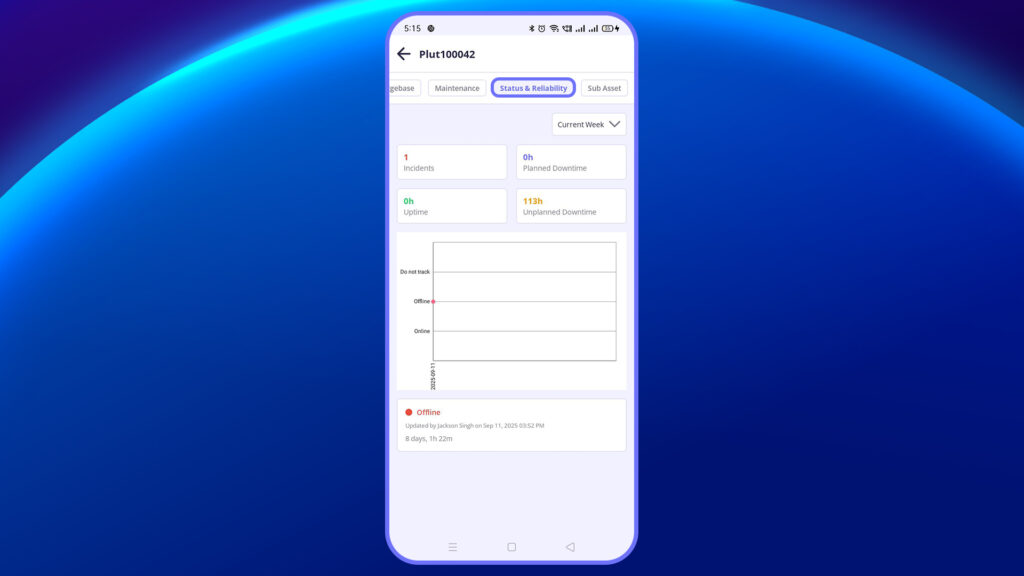
Status & Reliability
Provides records of the asset.
Includes:
- Incidents
- Uptime
- Planned Downtime
- Unplanned Downtime
Apply Filter By:
- Current Week
- Current Month
- All
- Custom
Helps analyze asset efficiency and incident frequency.
Sub Asset #
Used when one asset contains smaller components or parts
View Sub Assets
User can see sub-asset list (with name, no and status)
Apply Filter
Filter by sites, asset type, criticality, status, downtime type, date, created by and state of asset.
Helps maintain modular equipment with traceability.
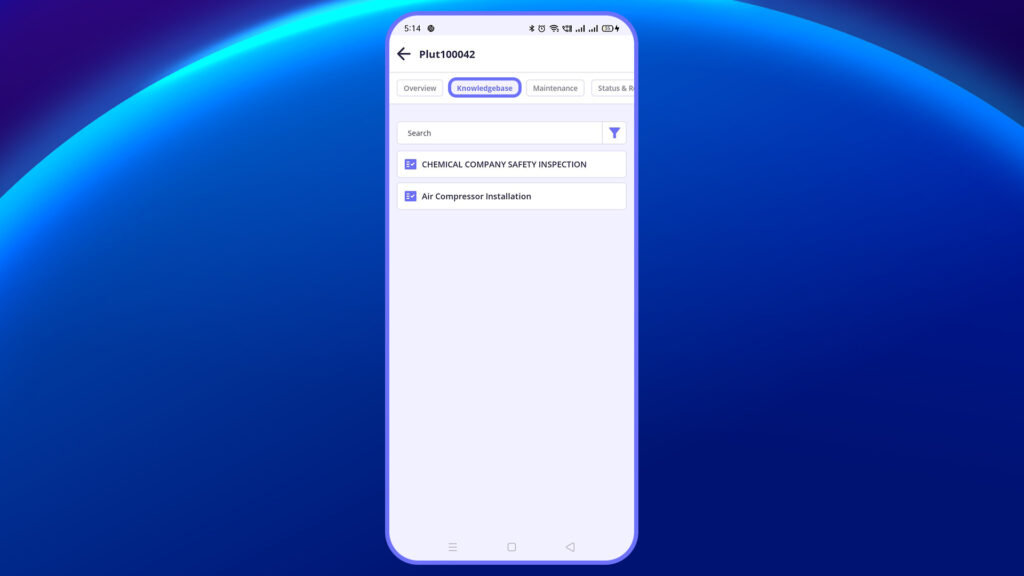
Logs #
This tab provides the activity history of the asset.
Includes:
- Creation/modification logs
- Job activity logs
- User changes
Useful for audits and accountability tracking.