The Reports section offers a centralized view of call activity and user engagement across the platform. It includes detailed logs, usage summaries, recordings, and snapshots to help monitor, audit, and analyze communication data efficiently.
Daily Usage #
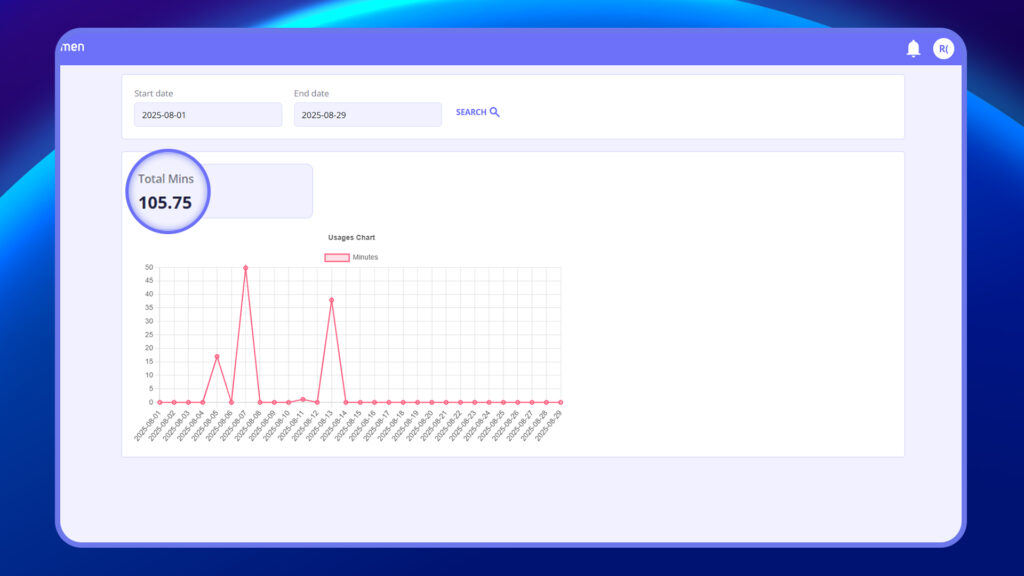
The Daily Usage section provides a summary of total call minutes used within a specified date range. Users can filter data by selecting a Start Date and End Date, after which the system displays the Total Minutes of call activity during that period. This feature helps track overall platform usage and monitor communication trends on a daily basis.
Steps to View Daily Usage Report
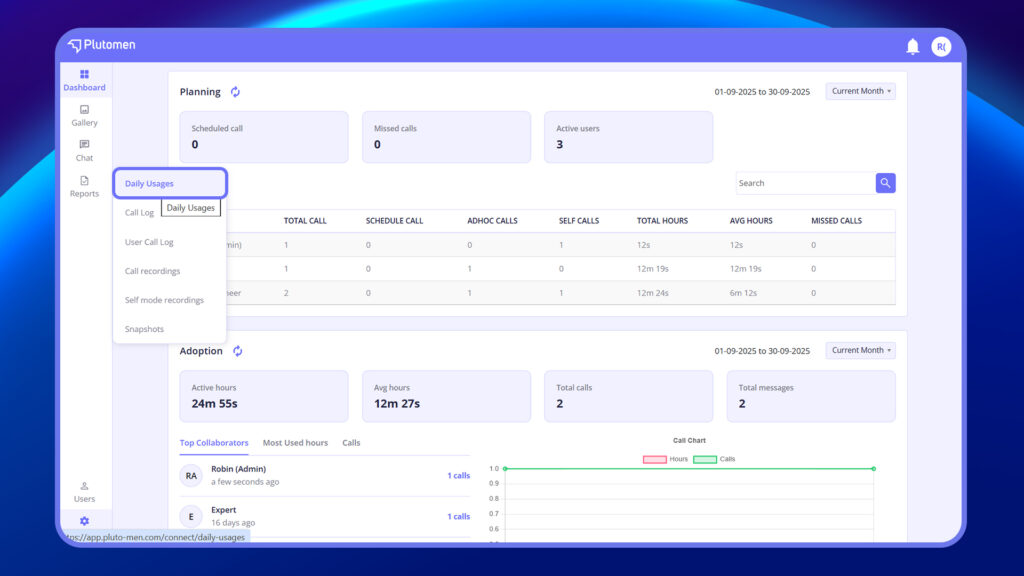
- From the Side menu, go to Reports.
- Select the “Daily Usage” option.
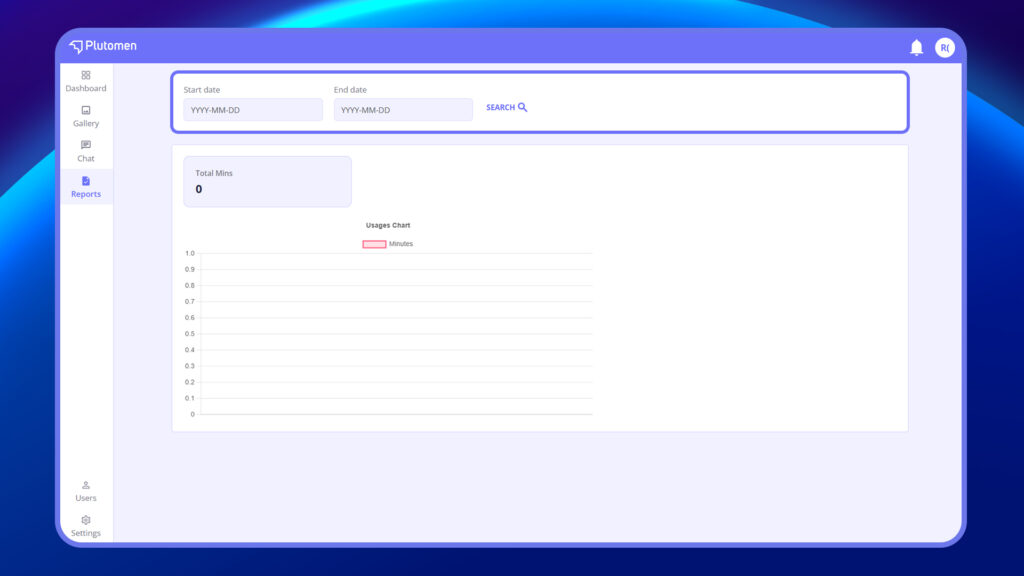
3. Enter the Start Date (format: YYYY-MM-DD).
4. Enter the End Date (format: YYYY-MM-DD).
5. Click Search to generate the report.
6. The system displays the Total Minutes of call activity.
Call Logs #
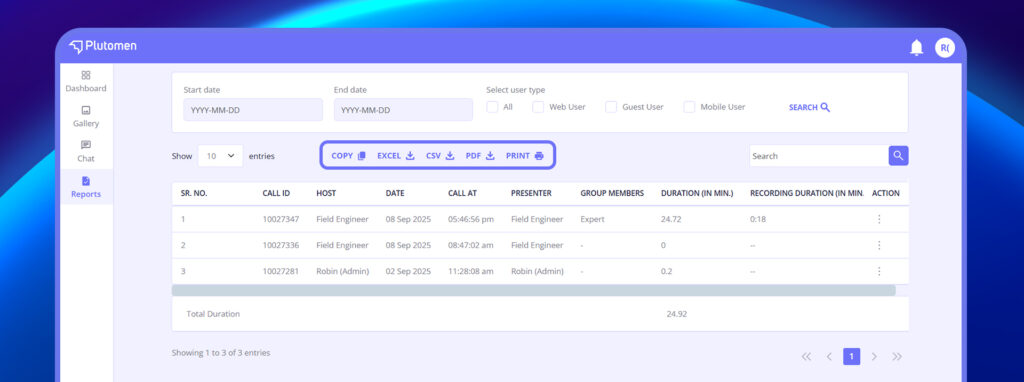
The Call Log section provides a comprehensive record of all group and individual calls on the platform. Users can filter logs by Start Date, End Date, and User Type to narrow down the results. Each entry includes a serial number, call ID, host name, call date and time, presenter details, group members, total call duration, and recording duration (if applicable). The table supports easy data export with options to copy, print, or download in Excel, PDF, or CSV formats, making it convenient for tracking, auditing, or reporting purposes.
Steps to View Call Logs
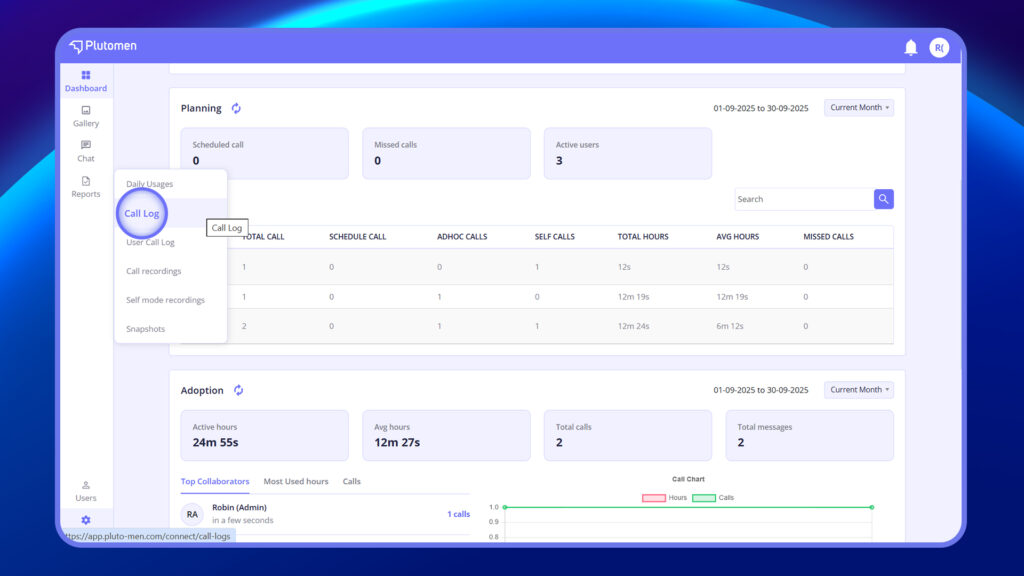
- Go to Side Menu > Reports > Call Log.
2. Select Start Date, End Date, and User Type (Web, Mobile, Guest).
3. Click “Show” to view results or use Search for quick filtering.
4. View details like Call ID, Host, Date, Presenter, Duration, and Recording.
5. Export data via Copy, Print, Excel, PDF, or CSV.
User Call Logs #
The User Call Log section allows users or admin to filter and view call history for a specific user within a selected date range. You can choose a user (e.g., Drupad Trivedi), set a “From” and “To” date, and view call records accordingly. Each log entry includes the serial number, call ID, call direction (to/from), call date, call time, and duration in minutes. The table supports data export options including Excel, PDF, and CSV, along with copy and print functionalities for easy reporting and analysis.
Steps to View User Call Logs
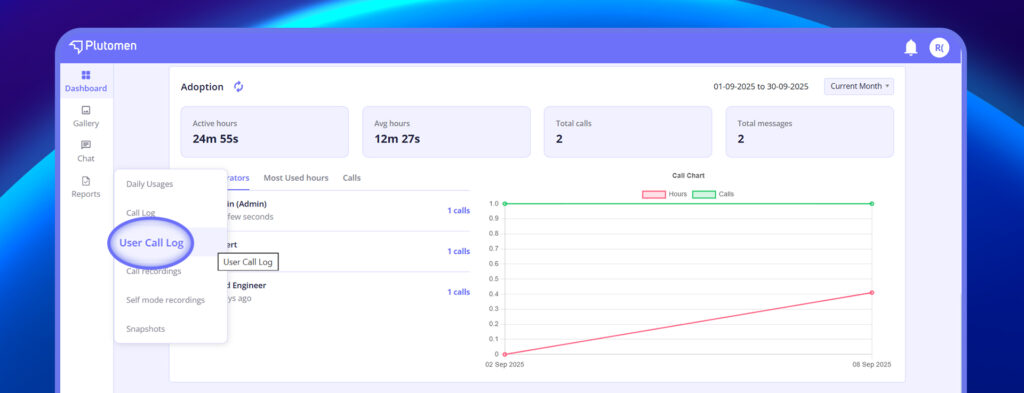
- Go to Side Menu > Reports > User Call Log.
2. Select User.
3. Choose From Date and To Date (YYYY-MM-DD).
4. Click “Show” or use Search to filter results.
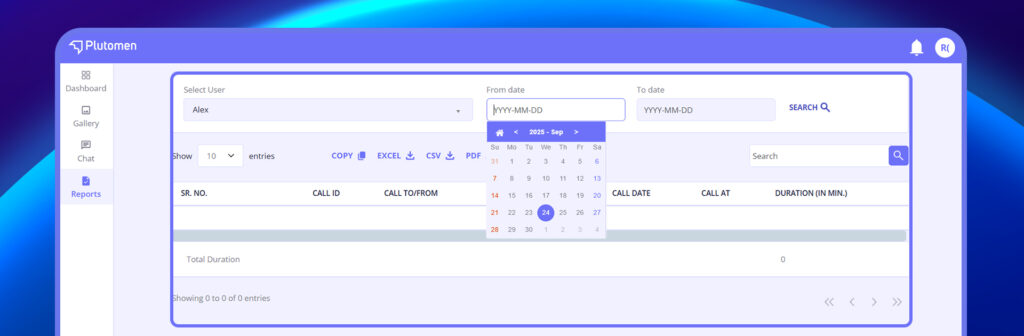
- View logs with Call ID, Call To/From, Date, Time, and Duration.
- Export data via Excel, PDF, CSV, or use Copy/Print.
Call Recordings #
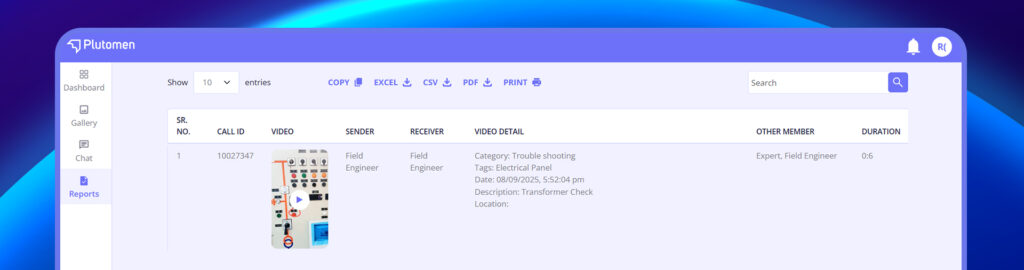
The Call Recordings section provides access to recorded audio or video calls conducted on the platform. Each entry includes the serial number, call ID, recorded video, sender and receiver details, video information, other call participants, and the duration of the recording. Admin can manage and review these recordings easily, with options to export the data in Excel, PDF, or CSV formats, as well as copy or print the table for compliance, quality review, or documentation purposes.
Steps to View Call Recordings
- Go to Reports from the side menu.
- Click “Call Recordings”.
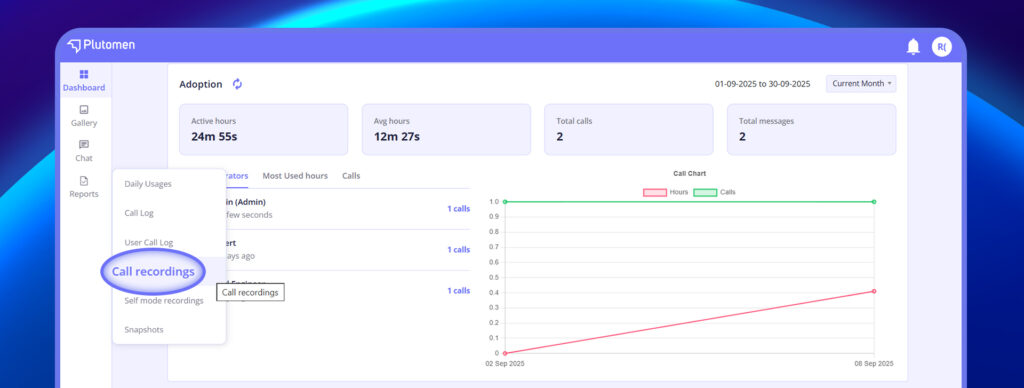
3. View logs with Call ID, Sender, Receiver, Video Info, Members, and Duration.
4. Export via Excel, PDF, CSV, or use Copy/Print.
Self Mode Recordings #
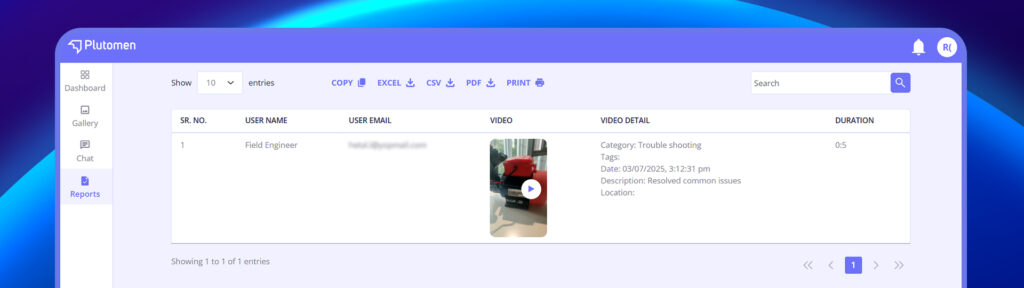
The Self Mode Recordings section displays all videos recorded by users in self-recording mode. Each entry includes the user’s name and email, the recorded video, details about the recording, and its duration. Admin can easily manage or review these entries and have the option to export the data in Excel, PDF, or CSV formats, as well as copy or print the table for reporting or archival purposes.
Steps to View Self Mode Recordings
- Go to Reports from the side menu.
- Click on “Self Mode Recordings”.
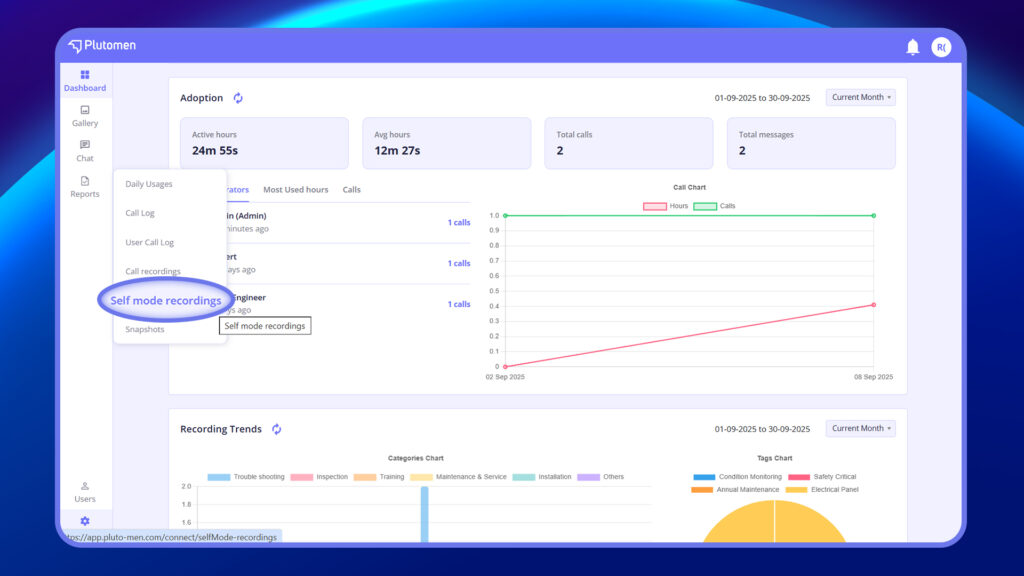
- View entries with User Name, Email, Video, Details, and Duration.
- Export data via Excel, PDF, CSV, or use Copy/Print.
Snapshots #
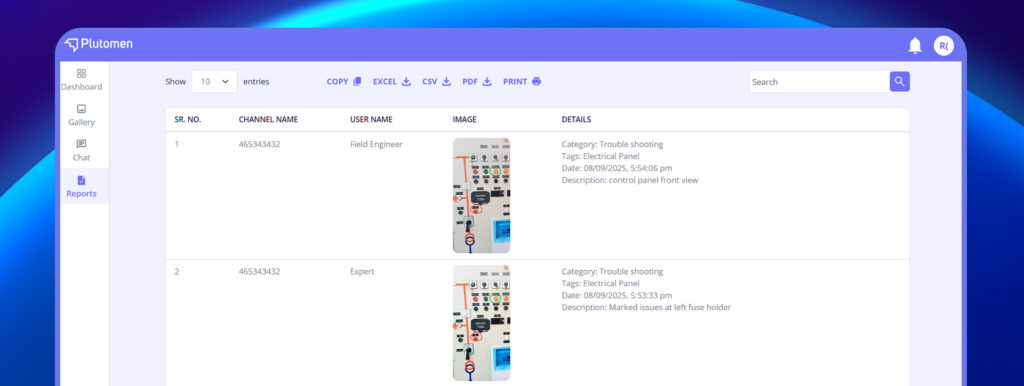
The Snapshots section displays images captured during calls, providing a visual record of important moments. Each snapshot entry includes a serial number, channel name, user name, the captured image, and related details. Admin can easily manage and review snapshots, with options to export the data in Excel, PDF, or CSV formats, as well as copy or print the table for documentation or reporting purposes.
Steps to View Snapshots
- Go to Reports from the side menu.
- Click on “Snapshots”.
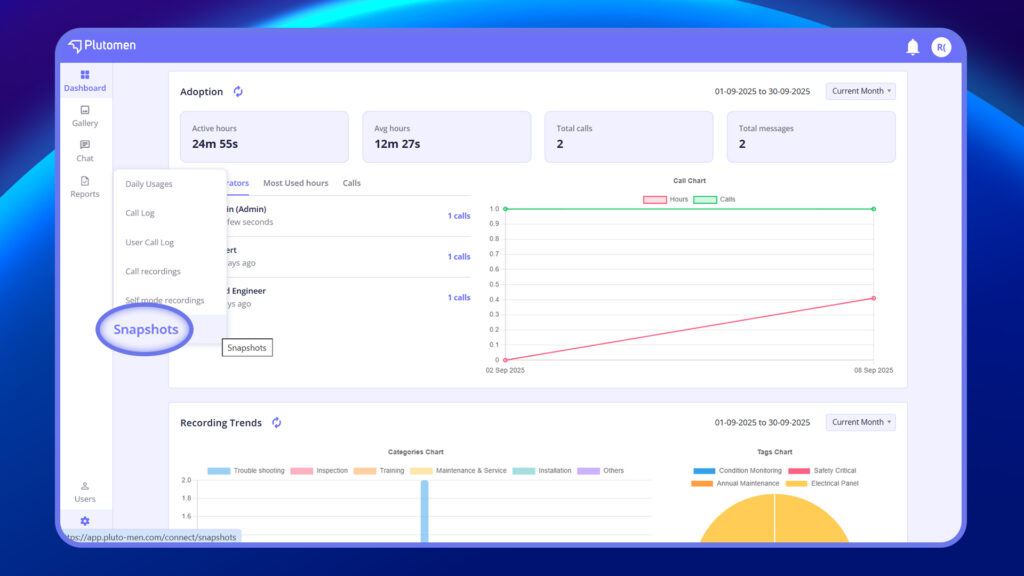
3. View images with Channel Name, User Name, Image, and Details.
4. Export via Excel, PDF, CSV, or use Copy/Print.