This section allows administrators or authorized users to create and manage user accounts within the organization.
Steps:
- Click on “User” at the bottom of the menu bar.
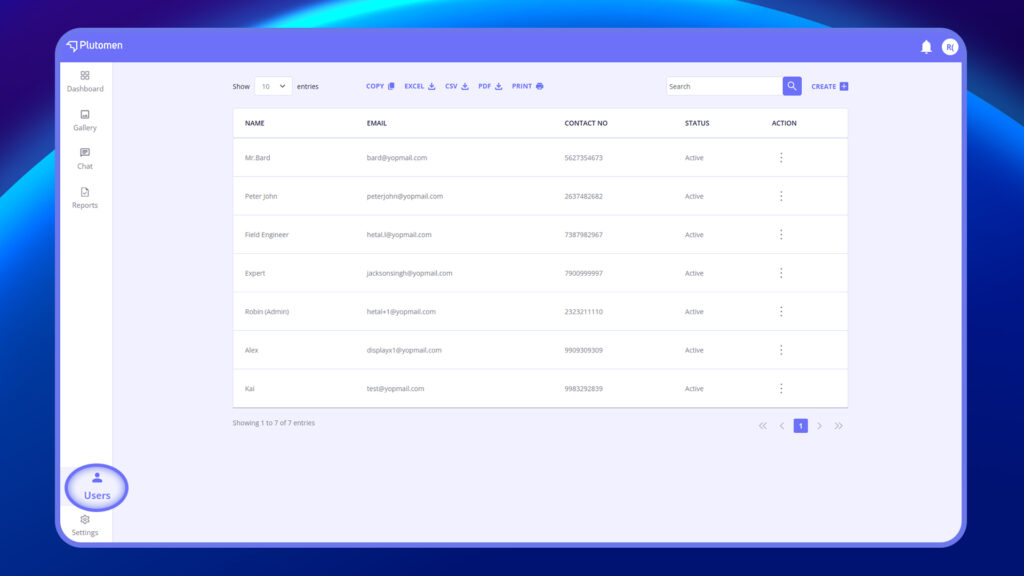
2. This action will open a page displaying the user listing with an option to add a user (CREATE +) at the top right.
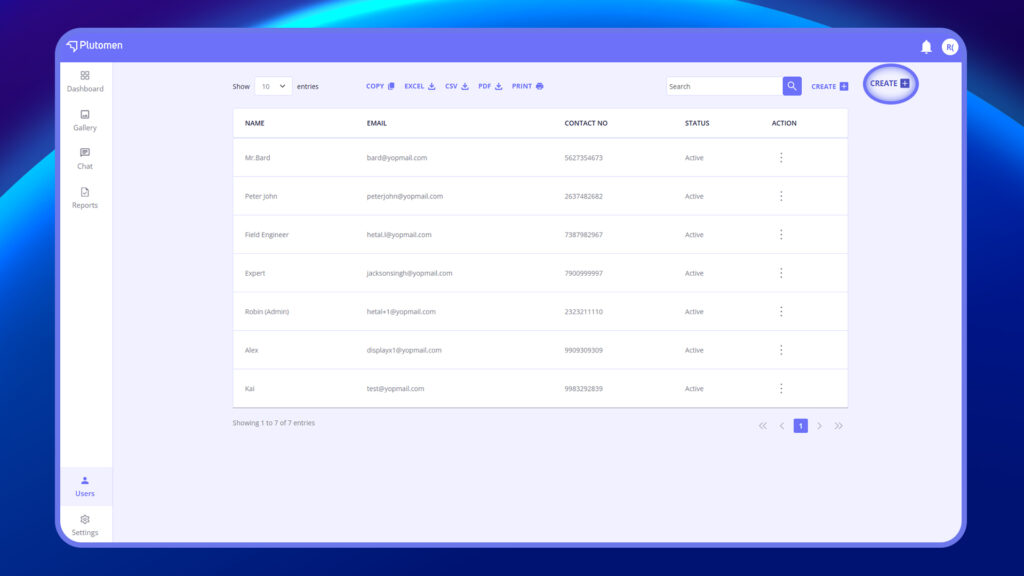
3. Clicking on the “Add User” option will open a modal window where you can enter the following details:
- Name
- Email ID
- Phone Number
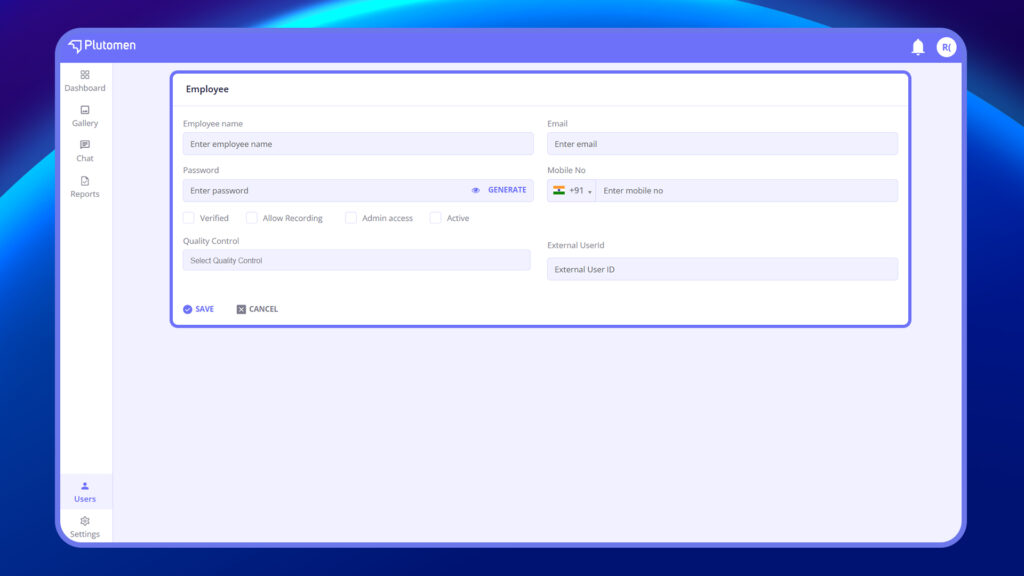
Note: During user creation, the admin has the option to set the password manually or allow the system to generate one automatically
4. Set:
- Verified, Allow Recording, Admin Access, Active
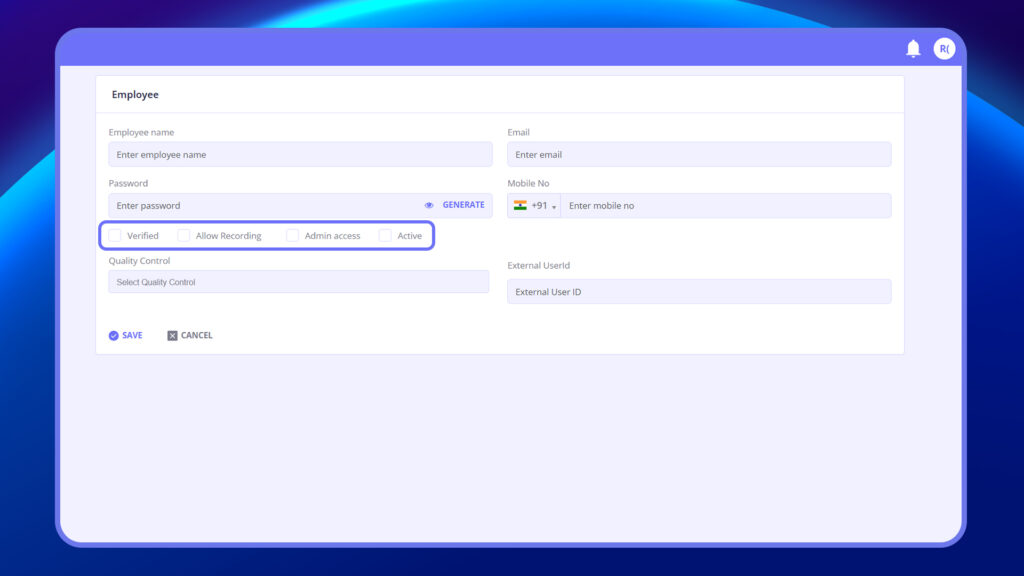
5. After entering the details, click on “Save” to create the new user, which will then be displayed in the user listing.


