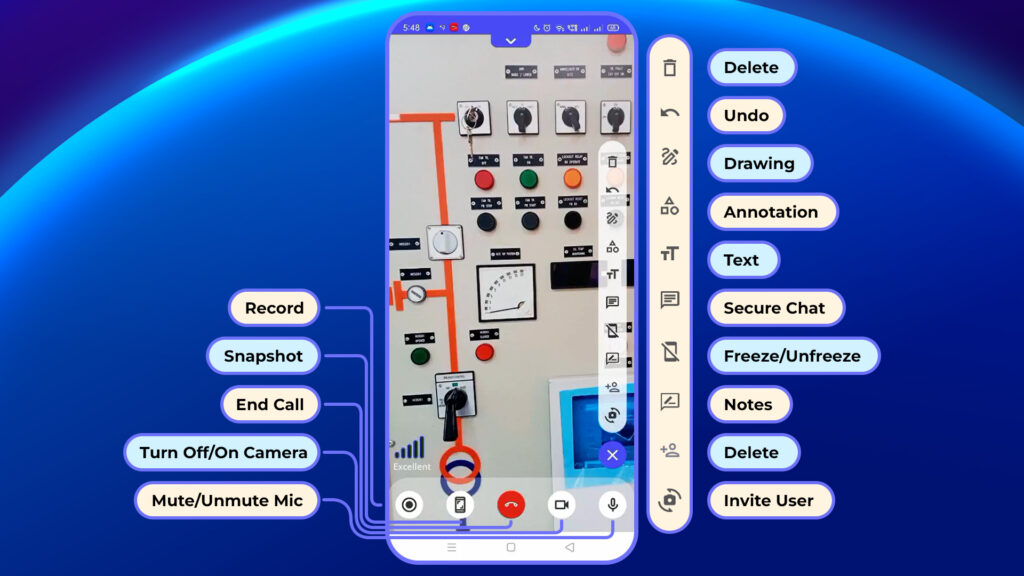
Once the expert and technician are on the call and have a live view of the site or machine from the technician’s camera, communication tools play a crucial role in facilitating effective remote support.
- Delete: Remove all drawings, annotations, and notes from the screen.
- Undo: Revert the most recent action or change.
- Draw: Draw and mark any areas on the screen using freehand tools.
- Annotations: Add predefined annotations (e.g., arrows, highlights, shapes) for emphasis.
- Chat: Exchange text messages during the call.
- Freeze: Pause the live screen for focused discussion.
- Note: Create and save notes during the session.
- Invite User: Add additional participants to the ongoing call.
- Auto-Rotate Camera: Automatically switch camera view based on device orientation.
- Recording: Record the session, including video, audio, and interactions.
- Snapshot: Take a screenshot of the current screen.
- Video On/Off: Enable or disable your device camera.
- Mute: Mute or unmute your microphone.