This feature empowers administrators to configure privileges for individual user accounts within the system. It typically involves defining permission for a specific Action.
| User Permission | Description |
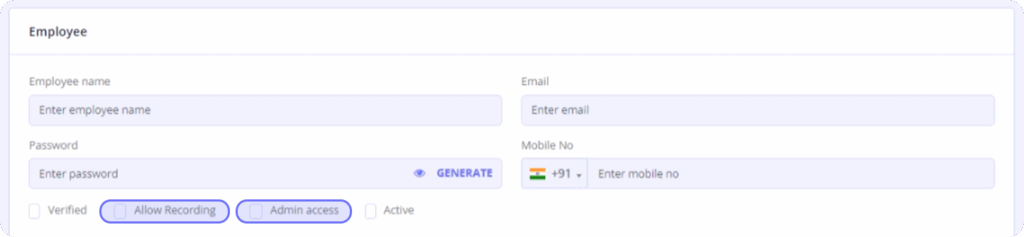
| Allowed Recording | When selected, the “Allowed Recording” checkbox grants the user permission to record calls |
| Admin Access | Selecting the “Admin Access” checkbox provides the user with access to the company dashboard and admin rights |
Steps
- Click on “Create User” at the bottom of the menu bar.
- This action will open a page displaying the user listing with an option to add a user (+ user) at the top right.
- Clicking on the “Add User” option will open a modal window where you can enter the following details:
- Name
- Email ID
- Phone Number
4. There are checkboxes for user permission; selecting the checkbox grants the permission to record and get admin access.
5. After entering the details, click on “Save” to create the new user, which will then be displayed in the user listing.
Note: A) Email ID and phone number are unique parameters while creating an account.


