How to Create a User Role #
Step 1: Access Role Settings #
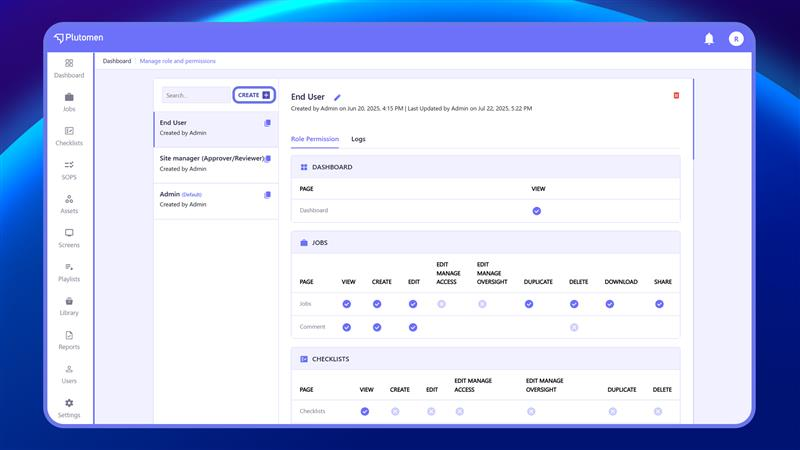
Go to Settings → Manage Role and Permissions.
Step 2: Create a New Role #
On the Manage Role and Permissions page, click Create (top-left).
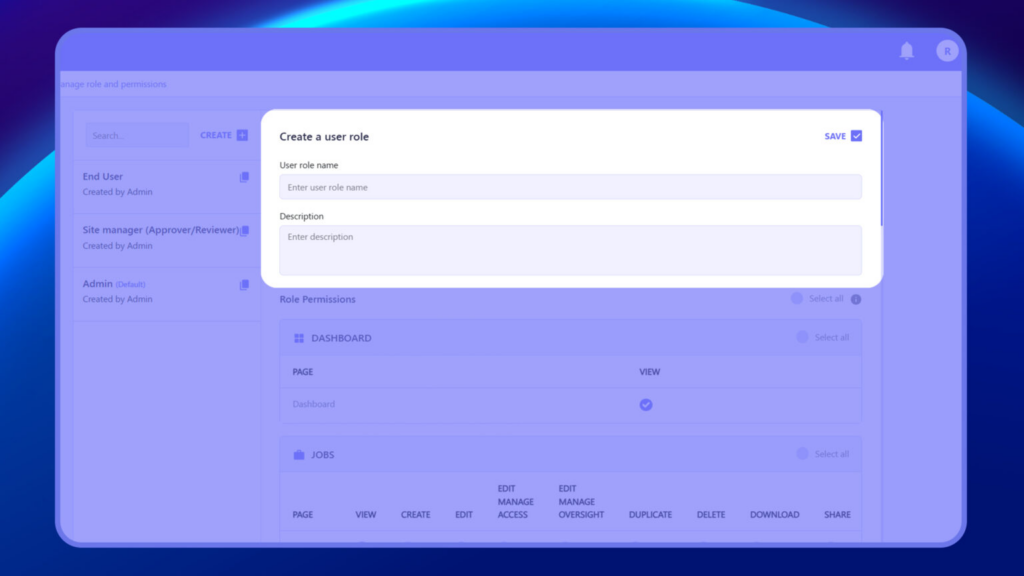
Enter the following details:
- Role Name
- Description
Step 3: Assign Permissions #
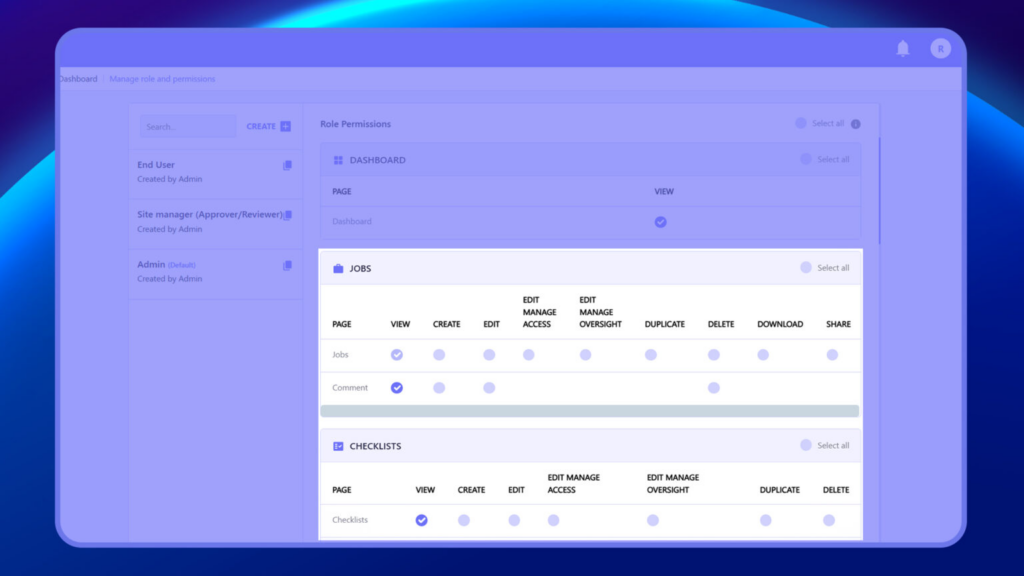
Select permissions based on the role.
You can enable actions such as:
- View
- Create
- Edit
- Delete
👉 Permissions control what users can access and perform in the system.
Step 4: Save Role #
Click on Save to create the role.
How to Edit User Details or Role #
Step 1: Open User Page #
Go to Settings → Manage Roles & Permissions.
Step 2: Select the User #
Find the user you want to edit from the user list.
Step 3: Update User Information #
You can modify details such as:
- User Name
- Description
- Assigned Role
Step 4: Save Changes #
Click Save to update the user details.
How to Delete a User #
Step 1: Open Users Page #
Go to Settings → Manage Roles and Permissions.
Step 2: Select the User #
Find the user you want to remove from the platform.
Step 3: Delete User #
Click Delete
Step 4: Confirm Deletion #
Confirm the action to permanently remove the user.
👉 Once deleted, the user will no longer be able to access the platform.


