- Open the mobile app.
- Access the respective checklist from the menu bar or open the corresponding In-progress checklist.
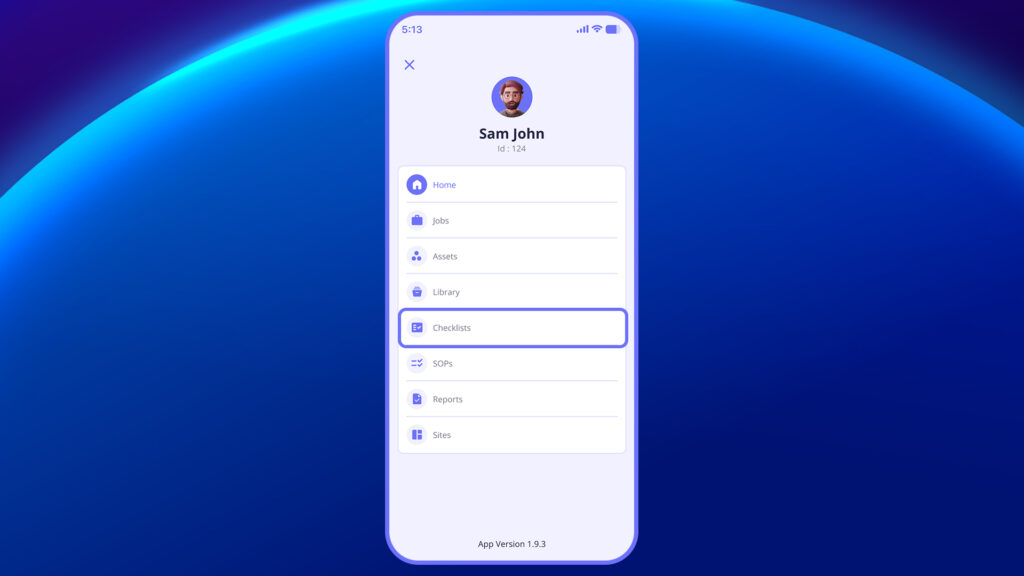
2. Start or edit the checklist.
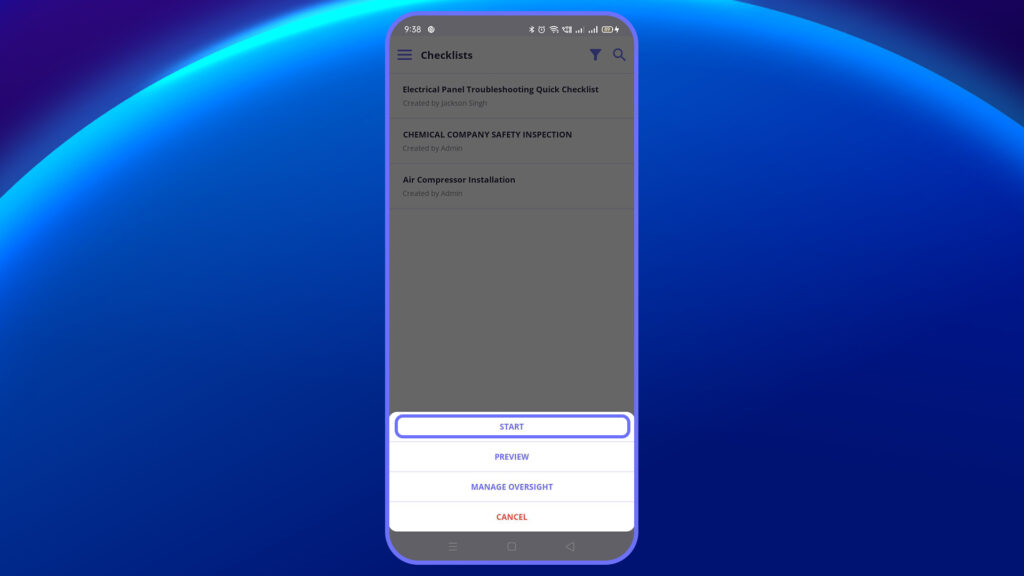
3. Select the site and asset before starting the inspection
4. Tap “Attach Media” at the bottom of the question.
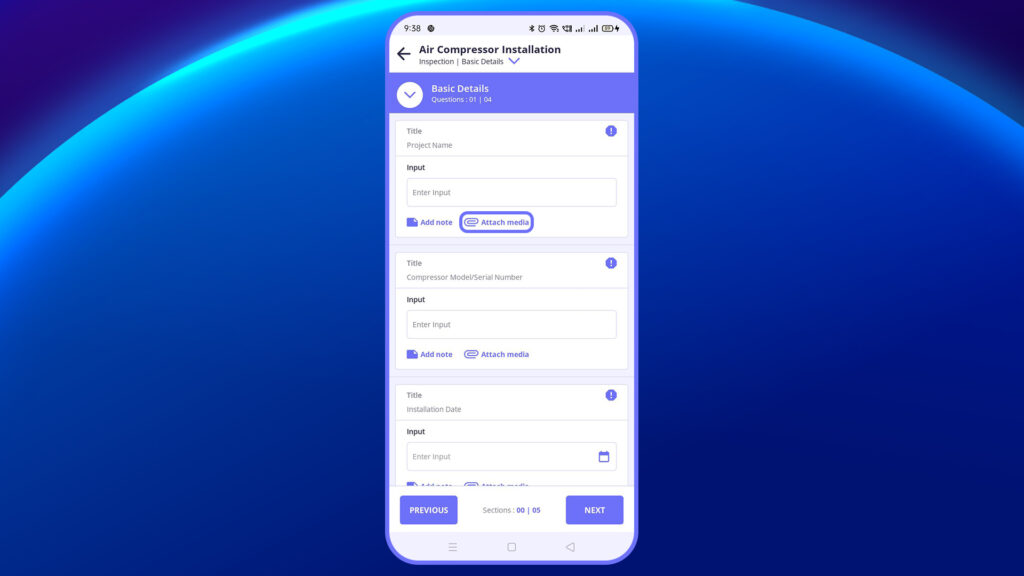
This opens options to:
- Attach media (Image/Video), Document from the mobile gallery.
- Selecting “Attach Media/Document from mobile” attaches an image/document from the mobile gallery.
OR
- Capture an image/video from the mobile device.
- Choosing “Capture Image/Video” opens the device’s camera.
5. Images captured will display the date of capture, latitude, and longitude on the image.
- After capturing, users can annotate the image with various color options.
6. Click “Save” when done.


