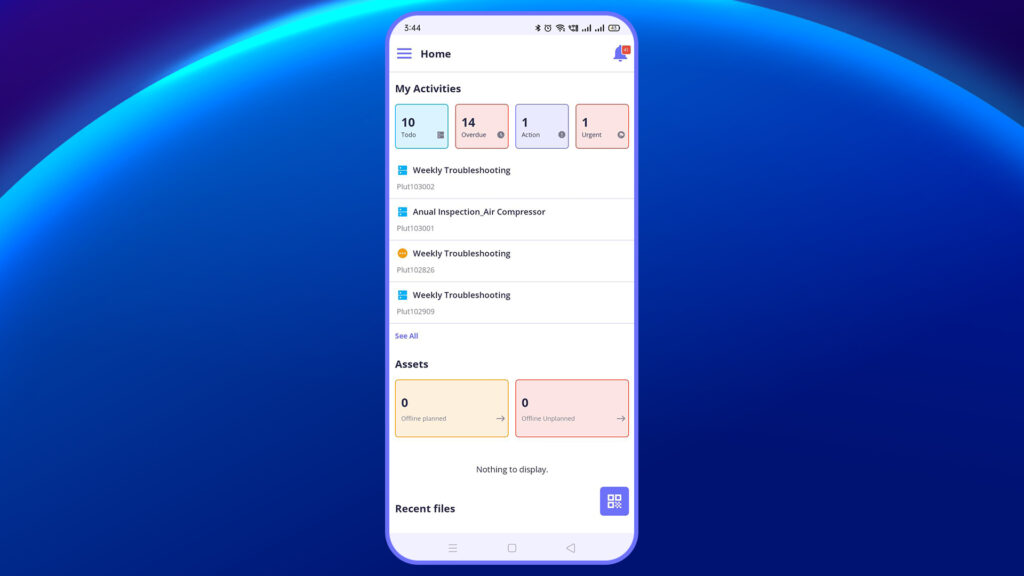
The Dashboard serves as the main landing screen for end users upon logging into the Plutomen Workflow app. It offers a real-time summary of your assigned activities (including jobs, checklists, SOPs, and library files), asset statuses, and recently accessed documents — all in one place.
My Activities/Job #
The My Activities section displays a summarized view of all your current job assignments and their corresponding statuses.
Activity Status Breakdown:
| Status | Description |
|---|---|
| To Do | Newly assigned jobs that are yet to be started |
| Overdue | Tasks that have missed their deadlines. |
| Action | Jobs that require further input or action to proceed. |
| Urgent | High-priority tasks that need immediate attention. |
(Insert Screenshot: Dashboard view showing all four status cards (To-do, Overdue, Action, Urgent).
Viewing and Accessing Jobs #
Below the activity summary, you will find a list of your currently assigned jobs. Each job entry includes:
- Job Title: A brief title describing the task
- Job ID: A unique identifier for reference.
Tapping on any job opens the task details, where the user can view the checklist, SOP, and library files.
Note: Tap the “See All” button in this section to access a complete list of activities — including draft, To Do, Inprogress, completed, or overdue items.
Assets #
The Assets section helps you monitor and manage inspection or maintenance activities related to physical assets within your facility.
Asset Categories Overview #
| Category | Description |
|---|---|
| Offline Planned | Scheduled downtimes for maintenance, inspections, or upgrades — planned in advance to avoid disruptions. |
| Offline Unplanned | Unexpected asset failures or breakdowns that occur without prior notice and need immediate action. |
Insert Screenshot: Asset categories with task counts.
If there are no active tasks in either category, you will see a message saying “Nothing to display.”
Navigating Asset Tasks #
The Asset section allows you to manage maintenance operations and ensure nothing gets missed proactively, even when tasks aren’t connected to a predefined job. In this video, you will learn how to access and manage assets within the Plutomen Workflow mobile app.
(Insert video: Asset task navigation and filtering)
Recent Files #
The Recent Files section keeps your most recently accessed documents in one place.
This feature is especially useful when switching between tasks or returning to a paused job, saving you from having to search for documents again.
QR Code Scanner #
The QR Code button in the bottom-right corner allows you to instantly pull up asset or job details by scanning QR codes attached to machines, tools, or locations.
Scanning to Access Information #
By scanning a code, you can bypass navigation and directly access relevant job or asset data. It’s a fast, error-free way to interact with the system in real time. In this video, you will learn how to use the QR code scanner to retrieve job or asset information.


