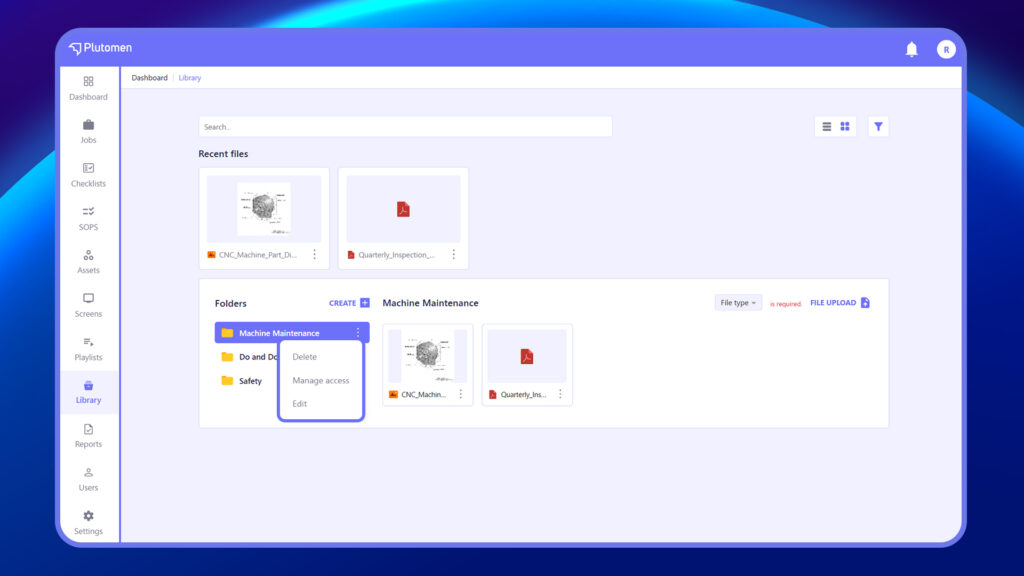
The Library is your go-to place to manage training materials, SOPs, manuals, videos, and reference documents. It allows users to create folders, upload files, apply filters, and organize content efficiently for seamless access and sharing.
Create a New Folder #
Organize your library by grouping content into folders.
- Click the “Create +” button beside Folders
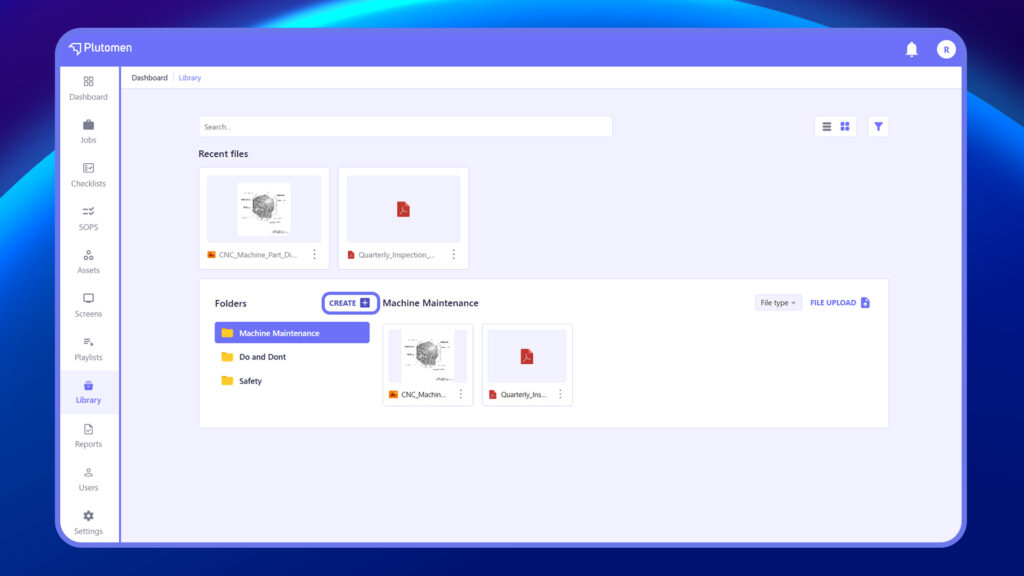
2. A pop-up appears prompting you to:
- Enter Folder Name
- Select Tag (e.g., safety, maintenance, quality)
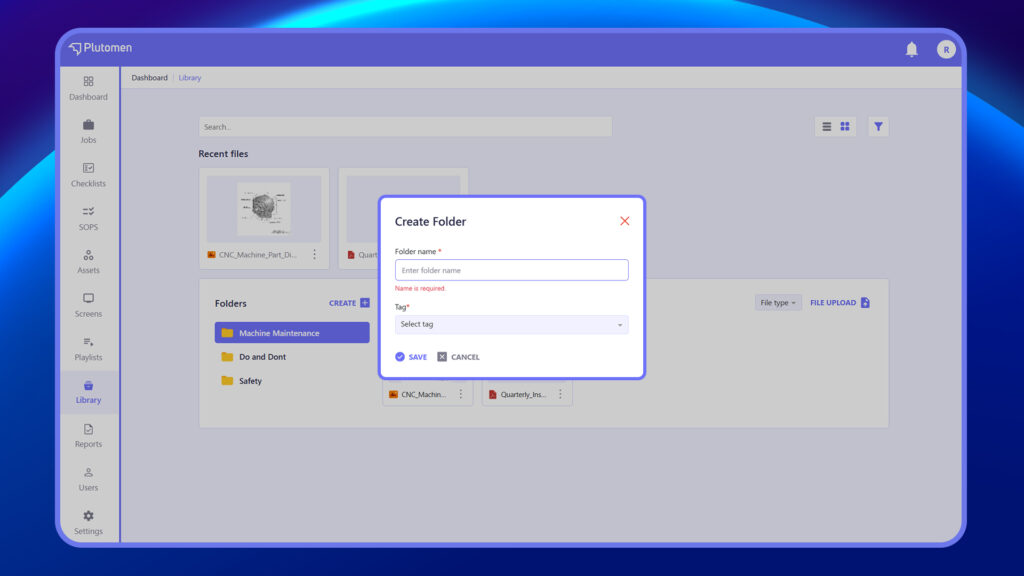
3. Click Save to create your folder
Upload Files #
Once you are inside a folder, you can upload the relevant content.
- Select the desired folder
- Click “File Upload” on the top-right
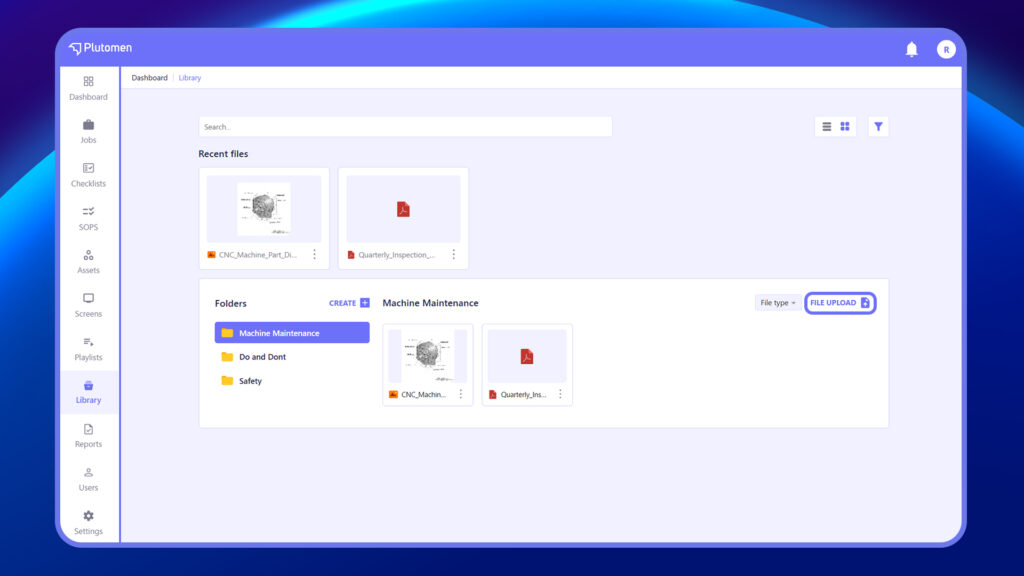
3. Choose one or more files from your system
4. Files will appear as thumbnails inside the folder
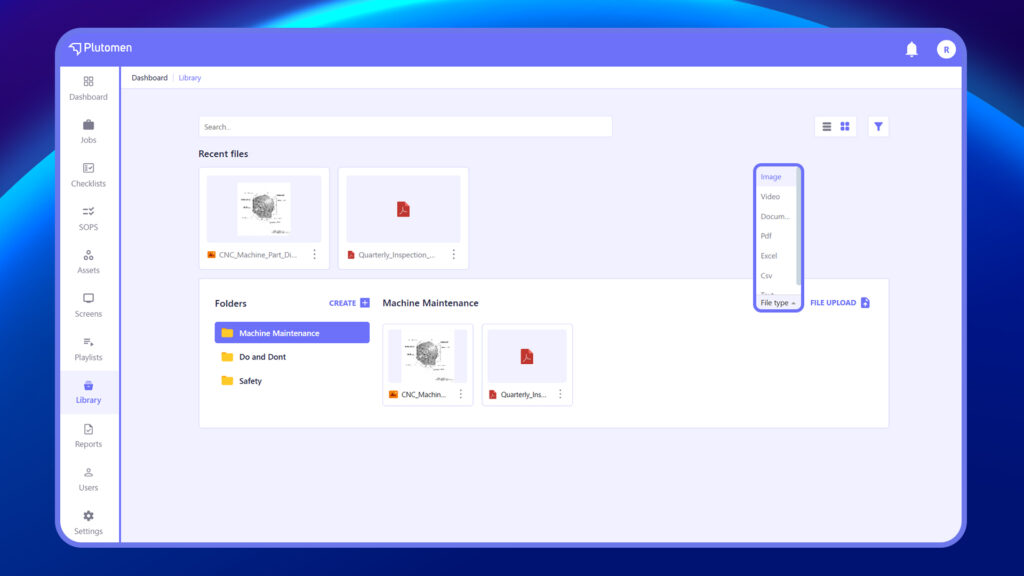
Supported file types include:
| Type | Format Examples |
|---|---|
| Document | .doc, .docx, .txt, .csv |
| Image | .jpg, .jpeg, .png |
| Video | .mp4, .mov |
| Excel | .xls, .xlsx |
Filter Content #
As your library expands, filtering allows you to quickly locate specific files based on multiple criteria like file owner, type, tags, or upload date.
To apply filters:
- Click the filter icon at the top right of the Library module.
- In the Apply Filter popup, use the following fields:
| Field | Description |
|---|---|
| By Owner | Select the user who uploaded or owns the file |
| File Type | Choose from supported file types (e.g., Image, Video, PDF, Excel, Document) |
| Tags | Filter files associated with specific tags (e.g., SOP, Safety, Maintenance) |
| Start Date | Set the starting date to filter files uploaded after a certain point |
| End Date | Set the end date to include files uploaded up to a certain point |
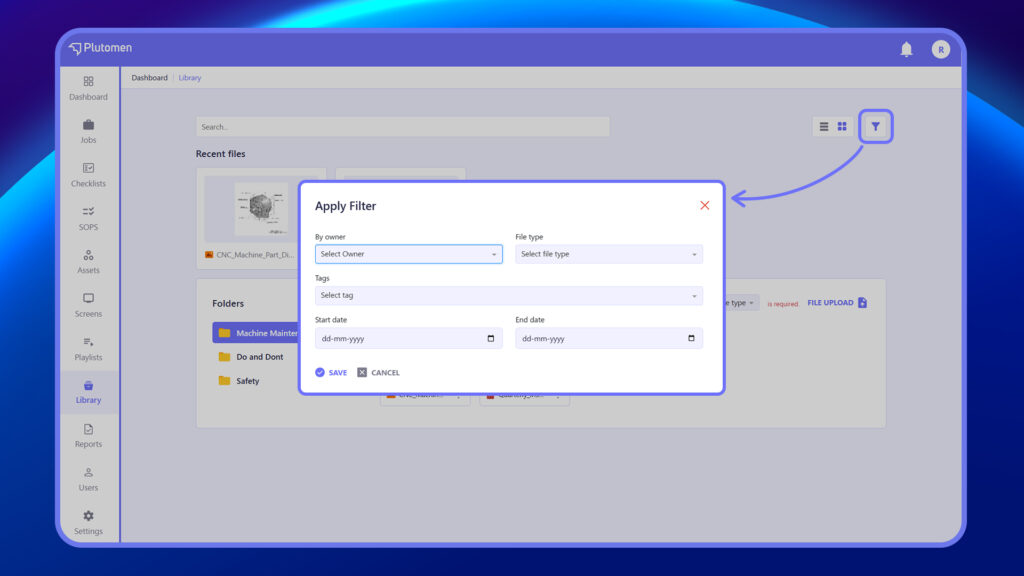
- Click Save to apply the selected filters.
- Click Cancel to exit without applying changes.
Search Content #
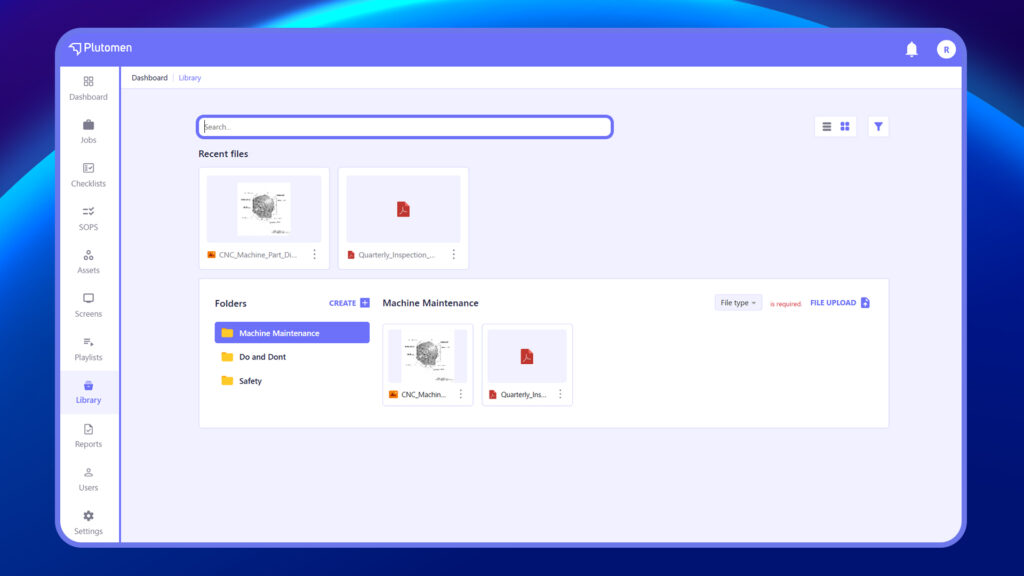
Use the Search bar above the folder list to:
- Find files by name or tag
- Search across all folders, not just the one currently open
Delete Files #
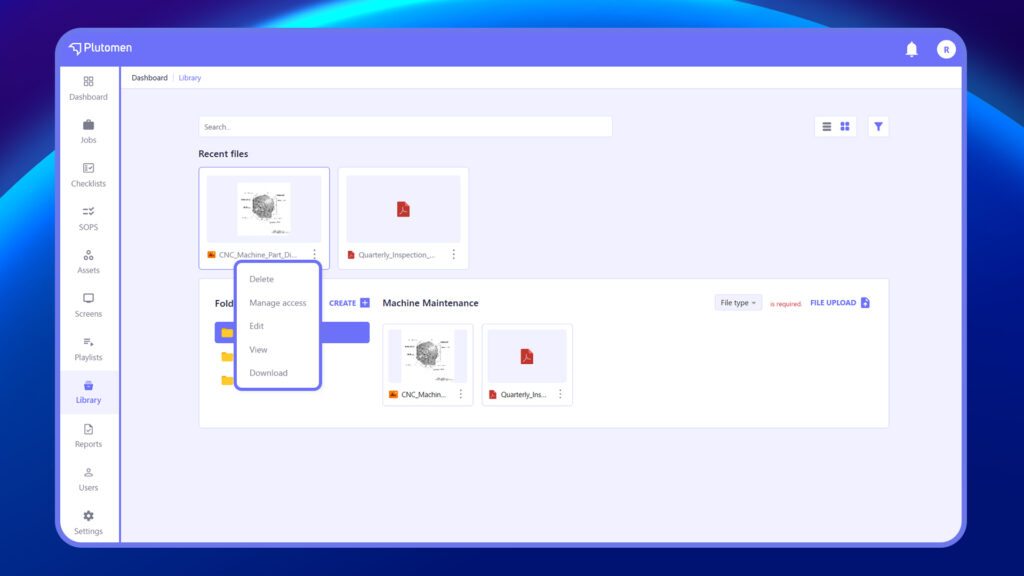
Permanently remove files from the system. This action should be used with caution, as deleted files may not be recoverable depending on system settings.
Manage Access #
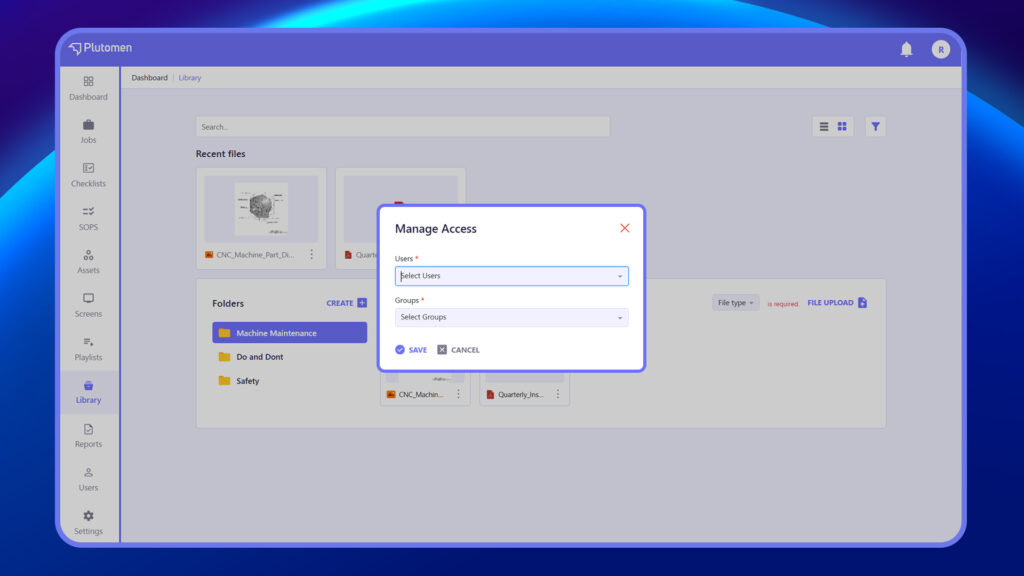
Control who can view, edit, or manage each file by assigning specific permissions to users or groups. This ensures the right level of access for different team members.
Edit File #
Update the file name and assign or modify required tags to help categorize and organize the file.
View File #
Open and preview files directly within the application without needing to download them.
Download File #
Save a copy of the file to your local device. This is useful when offline access is required or for sharing files outside the platform.
Folder Actions #
You can create, edit, delete, move, duplicate, archive, and pin folders for better organization. Additionally, manage access, view folder details, and sort contents as needed.
- Delete Folder: Remove folders that are no longer needed. Deleting a folder may also remove its contents.
- Edit Folder: Rename folders or update folder information to keep your library organized.
- Manage Access: Set permissions for users or groups to control who can view or edit the folder and its files.
- Filter Folder: Apply filters by selecting owner, file type, tags, and specifying a start and end date to narrow down folder contents.


