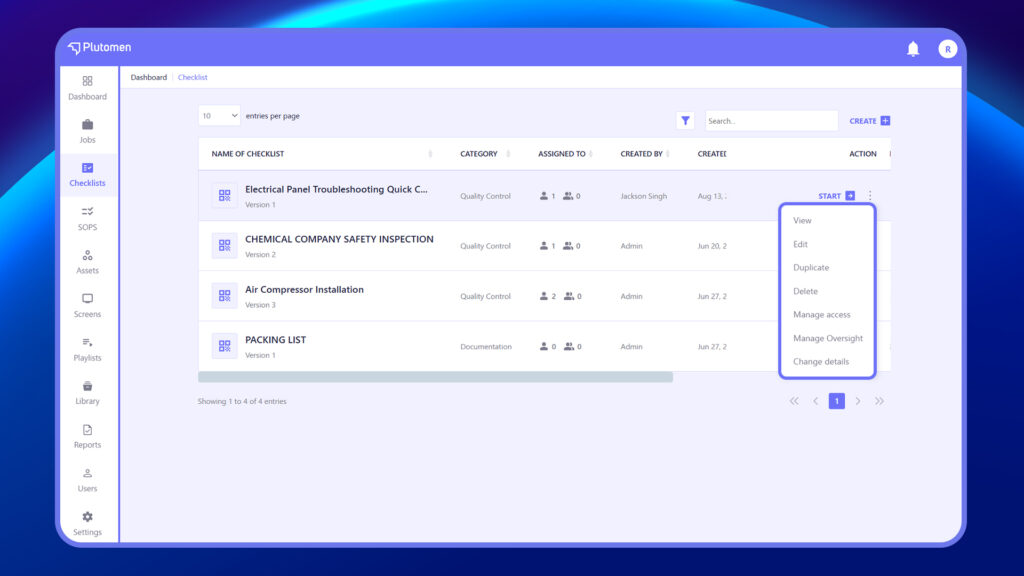
Perform the following actions on existing checklists:
View Checklist #
Open and review the checklist structure and details.
Steps to View Checklist
- Click the three-dot icon (⋮) next to the checklist name.
- Select View from the menu.
Edit Checklist #
Make changes to questions, pages, logic, or structure.
Steps to Edit Checklist
- Click the three-dot icon (⋮) next to the checklist name.
- Select Edit from the menu.
- Modify questions, pages, logic, or structure as needed.
- Click Save to apply your changes.
Duplicate Checklist #
Create a copy for reuse or modification without altering the original.
Steps to Duplicate Checklist
- Click the three-dot icon (⋮) next to the checklist name.
- Select Duplicate from the menu.
- A copy of the checklist is created — rename and edit as needed.
- Click Save to finalize.
Delete Checklist #
Remove the checklist permanently if no longer needed.
Steps to Delete Checklist
- Click the three-dot icon (⋮) next to the checklist name.
- Select Delete from the menu.
- Confirm the deletion when prompted.
- The checklist will be permanently removed
Manage Access #
Control who can view, edit, or fill the checklist.
Steps to Manage Access
- Click the three-dot icon (⋮) next to the checklist name.
- Select Manage Access from the menu.
- Assign permissions to Users or Groups.
- Click Save to apply changes.
Manage Oversight #
Assign oversight roles for review and approval.
Steps to Manage Oversight
- Click the three-dot icon (⋮) next to the checklist name.
- Select Manage Oversight from the menu.
- Assign Reviewers and/or Approvers.
- Use the Anyone/Everyone toggle to define whether any one person or all assigned users must complete the action.
- Click Save to apply the oversight settings.
Change Details #
Update checklist title, category, description, or other general info.
Steps to Change Checklist Details
- Click the three-dot icon (⋮) next to the checklist name.
- Select Change Details from the menu.
- Edit the title, category, description, or other fields.
- Click Save to apply the updates.
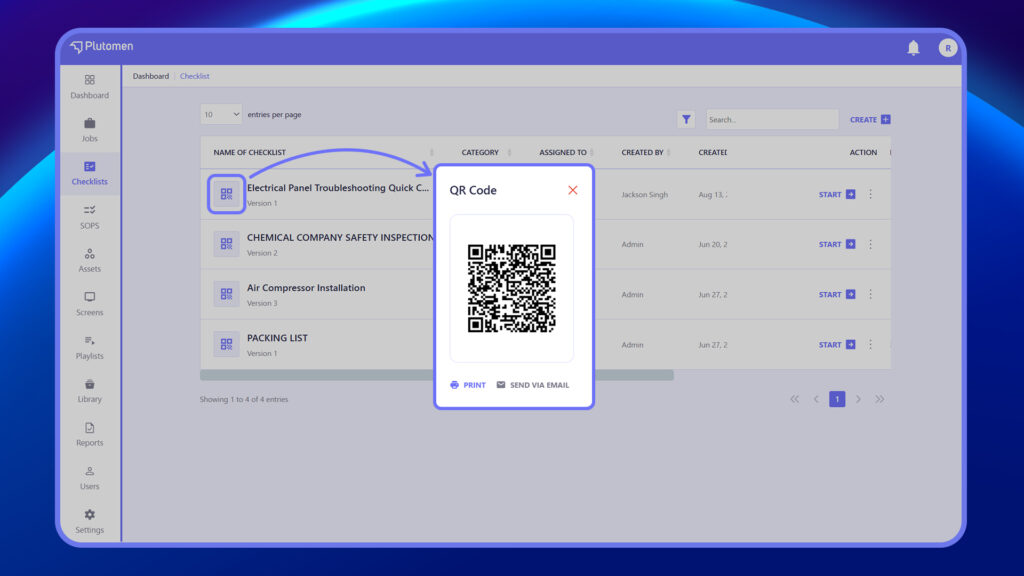
Checklist QR code #
Each checklist comes with a unique QR code that allows users to instantly open and complete the checklist using a mobile device. You can scan, download, or print the QR code for quick access during fieldwork, audits, or equipment checks.