Overview #
User Groups allow you to organize multiple users into a single group for easier management and assignment. Instead of assigning users individually, you can assign a group to tasks, jobs, or communication workflows.
This helps improve efficiency, especially when working with teams across departments or locations.
How to Create a New User Group and Add Users to It #
Step 1: Open User Groups #
Go to Users → User Groups.
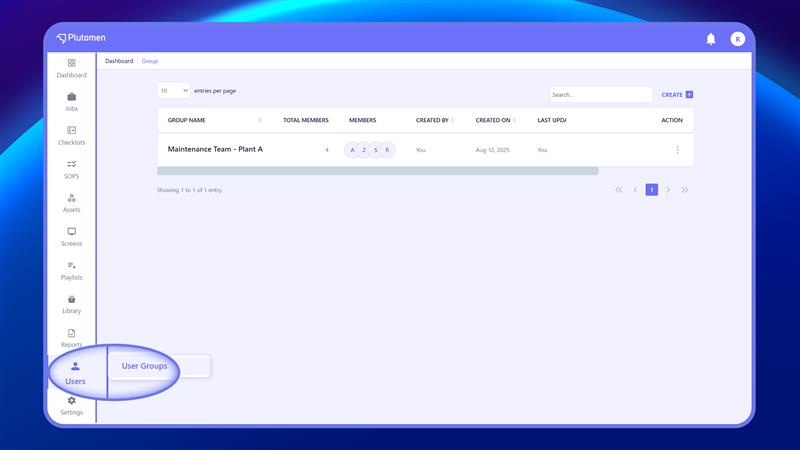
Step 2: Create a New Group #
Click “Create” to open a page listing all users who can be added.
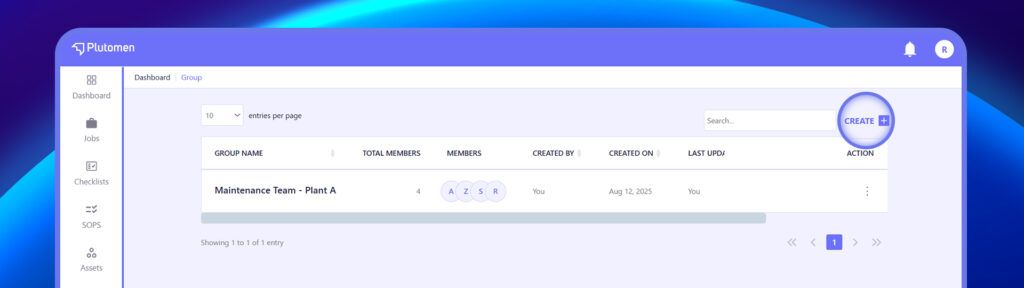
Step 3: Enter Group Details #
Provide:
- Group Name
Step 4: Add Users #
Select users to include in the group.
👉 You can select multiple users to form a team.
Step 5: Save Group #
Click Save to create the group.
How to Edit an Existing User Group and Update Group Members #
Step 1: Open User Groups
Go to Users → User Groups.
Step 2: Select Group
Find the group you want to update.
Step 3: Click Edit
Use the three dots (⋮) menu and click Edit
Step 4: Update Details
Modify:
- Group Name
- Add or remove users
Step 5: Save Changes
Click Save
How to Delete a User Group When It Is No Longer Required #
Step 1: Open User Groups
Go to Users → User Groups.
Step 2: Select Group
Find the group you want to delete.
Step 3: Delete Group
Use the three dots (⋮) menu and click Delete
Step 4: Confirm Action
Confirm the deletion


