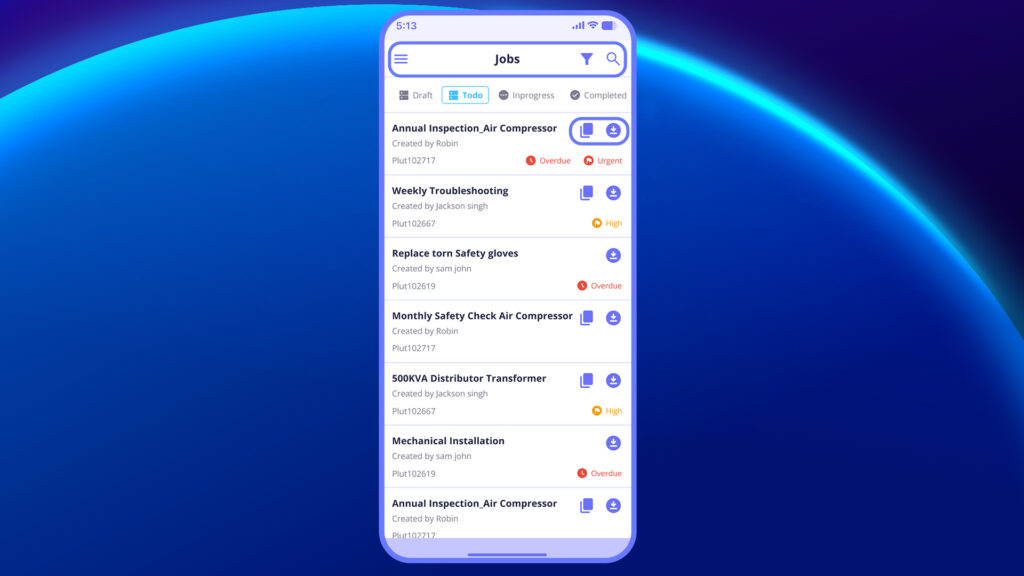
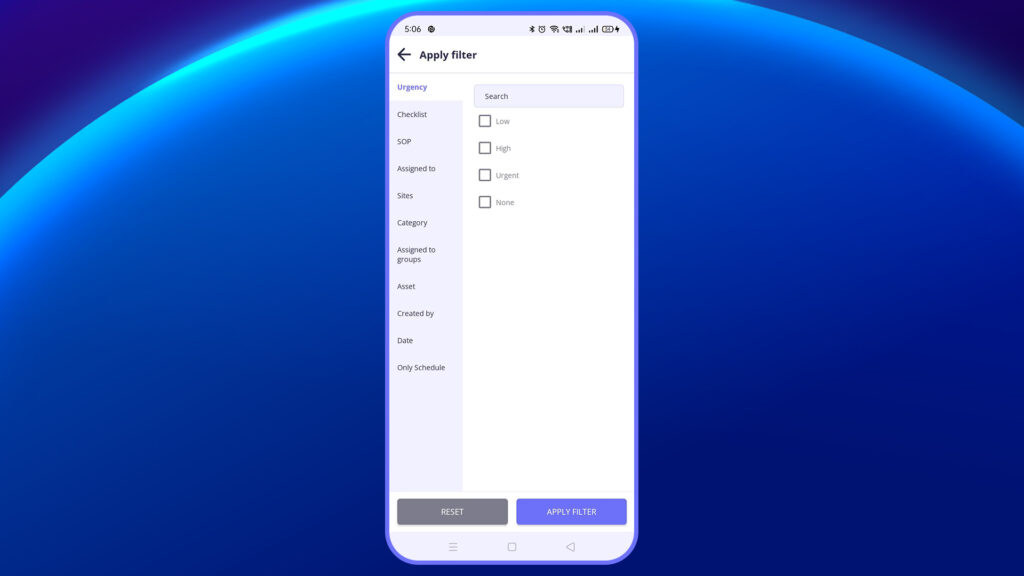
Filter allows you to narrow down the list of jobs using specific conditions like urgency, checklist type, assignee, asset, and more.
Using Filters to Find Jobs Faster #
This is useful when you’re working on a large number of tasks and want to quickly locate the ones that match your current need.
Insert Screenshot: Filter screen showing urgency levels, checklist, assigned to, and date.
You can select multiple criteria, then tap “Apply Filter” to update the list.
| Filter Field | Description |
|---|---|
| Urgency | Filter jobs based on their urgency level (Low, Medium, High, Urgent). |
| Checklist | Show jobs that include checklist-based activities. |
| SOP | Show jobs that include SOP-based activities. |
| Assigned To | View jobs assigned to specific users. |
| Assigned to Groups | Filter jobs assigned to particular user groups or departments. |
| Sites | Filter based on job location/site. |
| Category | Filter by job category (e.g., Safety, Maintenance). |
| Asset | Filter jobs linked to a specific asset or equipment. |
| Created By | View jobs created by a specific user. |
| Date | Filter jobs by date (Start Date / End Date). |
| Only Schedule | Show only jobs that have scheduled timelines. |
You can also hit “Reset” to clear all selected filters.
Search Bar #
You can also use the Search Bar at the top of the Jobs screen to quickly locate jobs by Job Title, ID, Site, Asset, or Category.